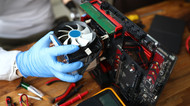
Computer hardware parts are the physical pieces that keep a system running, from storage drives and memory to processors, motherboards, power supplies, and networking equipment. People only begin to recognize hardware components when they experience performance issues, which result in device failures and business system outages. The need for dependable computer parts becomes evident during times when systems work incorrectly.
In 2026, choosing replacement hardware is no longer just a matter of swapping out a broken part. Buyers must now evaluate hardware elements, which include platform compatibility, security needs, operating system support, and planned upgrades for future years. Windows 11 still has strict baseline requirements such as TPM 2.0, Secure Boot capability, 4 GB of RAM, and 64 GB of storage, while current processor platforms also make socket and motherboard compatibility more important than ever.
A good hardware replacement guide should do more than list parts because it needs to accomplish that function. It should help readers understand what each component does, how to spot signs of failing hardware, when to replace computer hardware, and how to choose compatible computer parts without wasting time or money. The wrong replacement decision will result in business owners and IT buyers facing increased costs and decreased productivity because their operations will experience interruptions. Computer hardware planning through proactive measures proves more effective than allowing systems to reach a complete state of failure.
Newtown Spares will explain the basic computer hardware parts that serve desktops, laptops, and servers, and the business environment in this guide, while showing which components need replacement and what people should check when purchasing spare parts for computer systems. This article empowers both individuals who want to better understand their devices and businesses that require trustworthy replacement hardware to make better decisions.
Repair, Replace, or Extend? A Simple Decision Framework
Not every aging system needs a full replacement, and not every fault should be repaired. The better method involves assessing the role of the machine combined with downtime expenses, platform operational age, and current system requirements. The year 2026 will place greater importance on this matter because modern requirements will render a working PC system that still functions unsuitable for security and support purposes.
Repair
The process of repair becomes logical when technicians can pinpoint a specific problem while all other system components remain operational. The complete device can be fixed by replacing a failed SSD and faulty power supply and damaged keyboard and bad fan and worn printer roller. The best option to choose is when current systems can still run existing workloads and technicians have access to spare parts and repair costs remain below machine value. The compatibility of OEM systems requires thorough checking because model specific parts and approved replacement can vary between products within the same family.
Replace
The system should be replaced when it experiences multiple failures and its repair expenses increase and its operating limitations make it unfit for extended use. The system displays specific warning indicators which include two boot failures and “hard drive not detected” errors and screens that show nothing except a blinking cursor and systems that boot up missing their operating system and drives that produce clicking or grinding sounds. In business settings, waiting for complete failure often creates more cost through lost productivity and disruption than a planned replacement would. That is why proactive replacement is often the safer decision once hardware starts slowing work down or creating a security risk.
Extend
Extend is the right middle option when the system is stable but no longer fast enough for its current job. Most situations allow for equipment extension which keeps equipment operational through targeted upgrades that include replacing HDD with SSD and adding RAM and changing out worn batteries. The system functions optimally when it maintains its supported platform and lacks major defect patterns and customers can upgrade to better versions. The solution operates effectively in environments with low-risk positions and secondary systems which require a gradual upgrade approach instead of complete system replacements.
A simple way to apply this is: repair when the fault is specific, replace when the platform is becoming a risk, and extend when a focused upgrade can restore useful life.
Essential Computer Hardware Components
The process of selecting replacement hardware begins with determining which hardware components perform which functions and their significance for daily operations. Some parts impact system performance through their different effects on speed and stability, and their specific connections to storage, connectivity, and power requirements. Our practical guide establishes its main objective through two goals: to understand where each one is used, what problems it can cause when it starts failing, and what to check before replacing it. The hardware replacement guide becomes more beneficial for all readers when it shows them which parts to buy and which ones to avoid.
Storage Devices
Storage devices are the computer hardware parts that hold the operating system, software, documents, media, and business data. They have a major effect on performance, reliability, and recovery planning, which is why storage is often one of the first areas reviewed when a system becomes slow or unreliable. In 2026, storage decisions are not only about capacity. Buyers also need to think about speed, workload type, compatibility, and whether the drive is meant for a desktop, laptop, NAS unit, or server. NVMe remains the industry standard for SSDs across common form factors such as M.2, U.2, AIC, and EDSFF, which shows how important it has become in modern systems.
At a glance, here is how the main storage options compare when planning a repair, upgrade, or replacement.
Storage Type
Best For
Why Someone Chooses It
Common Reason to Replace or Upgrade
Key Check Before Buying
SSD
Fast boot drives, office PCs, laptops, modern desktops
Improves speed, responsiveness, and load times
System feels slow, old drive is failing, upgrade from HDD for better performance
Check interface type, form factor, and whether the system supports SATA or NVMe
HDD
Bulk storage, backups, archives, large file libraries
Lower cost per GB and higher capacity for storage-heavy use
Unusual noises, bad sectors, slow file access, storage expansion needs
Check drive size, interface, capacity needs, and available drive bay
Check exact form factor, thickness, connector type, and model compatibility
Desktop Drive
Workstations, home PCs, business desktops
Flexible storage upgrades with more room for expansion
Need more capacity, slow primary drive, failed secondary storage
Check bay size, motherboard connections, power connectors, and upgrade goal
Each of these storage types serves a different purpose, so the right choice depends on speed needs, capacity, workload, and system compatibility.
SSD (Solid-State Drive)
An SSD stores data on flash memory instead of spinning disks, which makes it much faster than a traditional hard drive for booting, loading applications, and everyday responsiveness. That is why SSDs are now the preferred choice for operating systems, office work, and many business workloads. They are often one of the best replacement parts for computers when the main problem is slow startup or lag during normal use. For modern PCs and laptops, NVMe SSDs are especially important because they use faster interfaces than older SATA drives.
HDD (Hard Disk Drive)
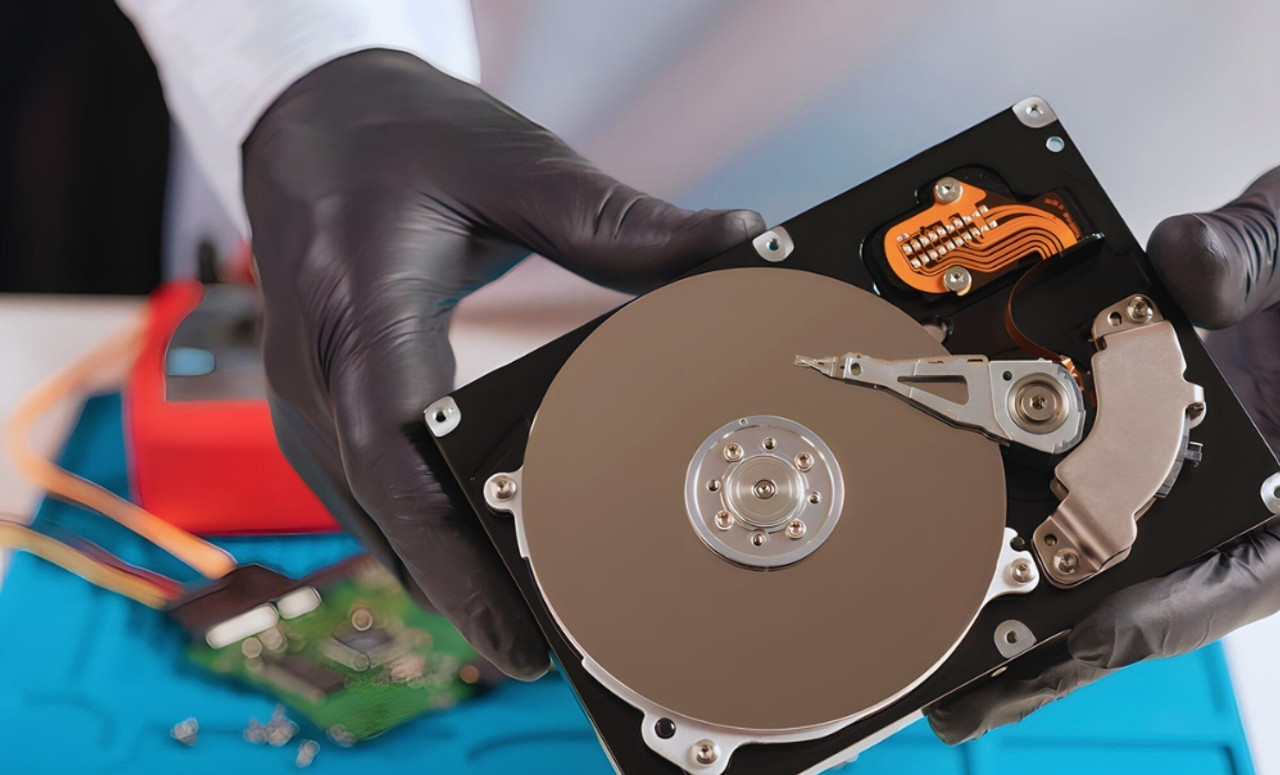
An HDD stores data on spinning magnetic platters. It is slower than an SSD, but it still has value because it offers large capacity at a lower cost per gigabyte. That makes HDDs useful for backups, archives, media libraries, and bulk storage where speed matters less than price and volume. In many systems, the smartest setup is not SSD or HDD alone, but an SSD for the operating system and an HDD for larger secondary storage. For readers trying to build a practical PC components list, that distinction is still important.
NAS Drives
NAS stands for Network Attached Storage, which means storage shared over a network so multiple users or devices can access the same files. NAS drives are not just ordinary drives placed in a network box. Official vendor guidance shows they are designed for centralized storage, multi-user access, RAID environments, and 24×7 operation. That makes them a better fit for shared office files, backup systems, and small business storage than standard desktop drives. When replacing a NAS drive, it is also wise to check the NAS vendor’s compatibility list before buying.
Server Drives
Server storage is usually selected for uptime, endurance, and predictable performance under heavier workloads. In practice, that means server environments may use enterprise HDDs or enterprise SSDs depending on the job. Enterprise SSDs are commonly chosen for workloads that need faster access and stable performance, while enterprise hard drives remain useful where large-scale capacity is a priority. Vendor guidance from HPE and Samsung emphasizes enterprise SSD use for demanding business workloads, and Dell also warns that enterprise server SSD compatibility is not something to treat casually, especially in branded server systems.
Laptop Hard Drives
Laptop storage is more space-sensitive, so form factor matters a lot. Seagate notes that 2.5-inch drives are standard for most laptops, which is why buyers must check physical size, interface, thickness, and whether the device supports SATA or an M.2 SSD before ordering a replacement. In many older laptops, moving from a traditional hard drive to an SSD can make the biggest visible difference in speed without replacing the whole machine. For a hardware replacement guide, this is one of the clearest examples of a targeted upgrade that can extend useful life.
Desktop Hard Drives
Desktop systems usually have more room for larger drives, which gives them more flexibility in storage upgrades. Seagate’s desktop drive range highlights the 3.5-inch form factor for high-capacity desktop storage, while 2.5-inch drives can still be used in some cases with the right mounting support. For desktop replacements, the key checks are simple but important: drive size, connection type, available bays, and whether the system would benefit more from a capacity upgrade or from moving the main workload to an SSD. For many users, this is where compatible computer parts matter most, because even a basic storage mismatch can turn an easy replacement into a frustrating one.
Processors
The processor, also called the CPU, is one of the most important hardware components in any system because it handles instructions and affects how smoothly the computer performs everyday tasks, business software, multitasking, and heavier workloads. In a practical replacement guide, the processor should not be treated as just another item in a PC components list. It is a decision point, because the right processor affects not only speed, but also the useful life of the whole platform.
From a replacement point of view, a processor upgrade makes sense when the current system struggles with the work being asked of it, when the platform no longer supports newer requirements, or when a broader refresh is already planned. In 2026, that decision is closely tied to platform compatibility. AMD continues to position AM5 as a long-term upgrade path with support through 2027 and beyond, while Intel states that current Core Ultra desktop processors use the LGA1851 socket and are not cross-compatible with older platforms. That means a CPU replacement often becomes a CPU-and-motherboard decision rather than a simple part swap.
Before buying a replacement processor, the most important checks are the socket, chipset support, BIOS or UEFI version, cooling support, and whether the processor includes integrated graphics. Intel’s own upgrade guidance says the processor socket must match the motherboard socket, and Intel has also documented cases where certain motherboard chipsets need a BIOS update for processor compatibility. AMD’s current product pages also show that some processors include built-in graphics, while others require a separate graphics card, which can affect replacement planning. This is where compatible computer parts matter most, because even a high-quality CPU is the wrong choice if the rest of the platform cannot support it.
Motherboards
The motherboard is the main board that connects many of the computer parts inside a system, including the processor, memory, storage, expansion slots, and ports. For replacement planning, it is one of the most important hardware components because it determines what other parts the system can accept. A motherboard decision affects processor compatibility, memory type, storage support, and future upgrade options, which is why it often sits at the center of any serious hardware replacement guide. On current AMD desktop platforms, for example, AM5 motherboards are tied to DDR5 support and newer features such as PCIe 5.0 and USB4 on current chipsets.
Motherboard Type
Best For
Why Someone Chooses It
Common Reason to Replace
Key Check Before Buying
Desktop Motherboard
Towers, workstations, upgradeable business PCs
More flexibility for processors, storage, RAM, and expansion cards
Failed ports, power issues, aging platform, or planned CPU/platform upgrade
Check socket, chipset, form factor, RAM type, storage support, and BIOS compatibility
Laptop Motherboard
Notebooks and compact business systems
Built to match a specific chassis, port layout, and internal design
Power faults, liquid damage, charging failure, or board-level faults
Check exact model, OEM part number or FRU, connector layout, and chassis compatibility
Server Motherboard
Rack and tower servers, uptime-focused systems
Built around a validated server platform and business continuity needs
Board failure, controller faults, or major platform repair
Check exact server model, approved replacement part, firmware requirements, and post-replacement system configuration
These checks are based on current official guidance: desktop platforms depend on socket and chipset matching, some boards need BIOS updates for CPU support, laptop replacements often require exact OEM parts lookup, and server board replacements are tightly tied to model-specific configuration.
Desktop Motherboards
Desktop motherboards are the most flexible type for upgrades and replacement hardware. They are commonly used in standard office PCs, custom desktops, and workstations, and they give buyers more room to change processors, memory, storage, and add-in cards. That flexibility is useful, but it also means buyers must pay close attention to socket and chipset compatibility. AMD’s current AM5 motherboards are designed around DDR5 and newer platform features, while Intel says Core Ultra desktop processors require LGA1851 boards and are not cross-compatible with older sockets. For desktop replacements, the smart approach is to treat the motherboard as the compatibility hub for the whole system, not just a board with connectors.
Laptop Motherboards
Laptop motherboards are far more model-specific than desktop boards, which makes them one of the trickiest computer parts to replace correctly. In business and consumer laptops alike, the right board usually depends on the exact device model and official part identification rather than a broad “will this fit” assumption. Lenovo’s official parts tools are a good example of how OEMs handle this: they direct users to look up genuine compatible parts and FRU numbers for the exact machine. That is why laptop motherboard replacement is usually less about choosing among many options and more about identifying the right board for that precise system.
Server Motherboards
Server motherboards are the most controlled and business-critical type in this category. They are usually replaced because of a confirmed fault, not because someone casually wants a different feature set. HPE’s support documentation shows how structured this process is: after certain server system board replacements, the serial number and product ID must be re-entered or matched to the replaced server to support a smooth operational transition. That tells the reader something important right away: in server environments, motherboard replacement is closely tied to platform validation, uptime, and exact model compatibility. For enterprise replacements, this is where genuine or approved IT spare parts become especially important.
RAM (Memory)
RAM, short for Random Access Memory, is the part of a computer that temporarily holds active data so the system can work quickly while programs are open. It is one of the hardware components most closely linked to smooth multitasking, application responsiveness, and day-to-day system stability. In replacement terms, memory is important because low or mismatched RAM can make a system feel slow, even when the processor and storage are still acceptable. Current vendor guidance also shows how strict memory compatibility has become: desktop and laptop upgrades depend on the right module type and system support, while server environments are even more sensitive because different module classes and generations cannot simply be mixed.
A quick way to think about memory replacements is to separate them by system type and by compatibility risk.
Memory Type
Best For
Why Someone Chooses It
Common Reasons to Replace or Upgrade
Key Check Before Buying
Desktop Memory
Office PCs, workstations, upgradeable desktops
Easy performance upgrade for multitasking and productivity
Slow system performance, low installed capacity, planned refresh
Check DDR generation, DIMM type, supported speed, slot count, and motherboard support
Laptop Memory
Notebooks, mini PCs, compact systems
Helps extend useful life without replacing the whole machine
Lag during multitasking, low memory capacity, application slowdowns
Check exact laptop support, module type such as SO-DIMM or newer form factor, and maximum capacity
Server Memory
Business servers, virtualization, data-sensitive workloads
Built for capacity, stability, and enterprise reliability
That summary reflects current memory guidance from Kingston: desktop and laptop systems use different upgrade paths, while server memory has strict rules around ECC, module class, and generation support. Kingston also notes that DDR4 and DDR5 are not socket-compatible, and different server memory types such as UDIMM, RDIMM, LRDIMM, and MRDIMM must not be mixed in the same system.
Desktop Memory
Desktop memory is one of the simplest computer parts to upgrade when a system feels slow during multitasking, browser-heavy work, office applications, or light creative use. It is popular as replacement hardware because it can often improve everyday performance without forcing a full platform refresh. The main compatibility checks are the DDR generation, the DIMM form factor, motherboard support, and the system’s population rules, because even the correct capacity can cause issues if modules are installed in the wrong combination. Kingston’s current memory guidance shows that memory population rules still depend on the CPU and chipset pairing, which matters when trying to get stable performance from a new kit.
Laptop Memory
Laptop memory upgrades are useful when a machine is still dependable but no longer feels comfortable for modern workloads. In those cases, adding memory can be one of the best replacement parts for computers because it extends useful life at a relatively low cost. The challenge is that laptop upgrades are more constrained than desktop upgrades. Buyers need to check the exact memory type supported by the machine, the maximum capacity, whether the memory is user-upgradeable, and whether the device uses compact modules such as SO-DIMMs or newer DDR5-focused formats. Kingston’s desktop and laptop memory guidance reinforces that laptop memory is a separate upgrade path, not something to assume from desktop specs.
Server Memory
Server memory is the most specialized category in this section because uptime and data integrity matter more than simple capacity alone. Kingston’s enterprise guidance explains that ECC memory is designed to detect and correct errors before they affect high-availability or data-sensitive workloads, which is why server environments often use ECC-capable modules rather than standard consumer memory. The same source also notes that server memory types cannot be mixed freely, and that DDR4 and DDR5 are not cross-compatible. For business IT and enterprise replacements, that makes server memory a category where exact compatibility matters more than price alone.
Power Supply
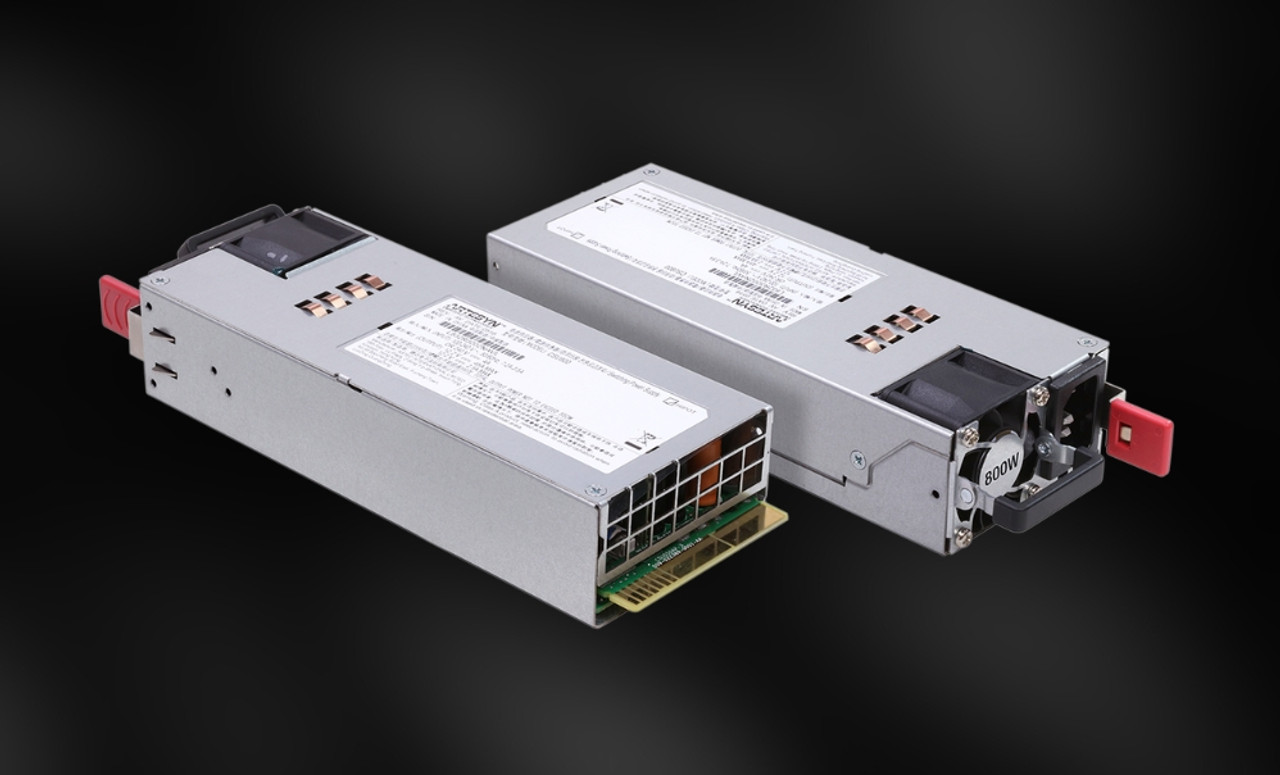
The power supply unit, or PSU, is the component that converts wall power into the voltages a computer’s internal parts can use. It may not be the most visible part in a PC components list, but it is one of the most important because an unstable or underpowered PSU can affect the whole system. In practical terms, power supply replacements are often triggered by unexpected shutdowns, failed boot attempts, aging components, or a planned graphics-card upgrade that pushes the old unit beyond its comfort zone. For modern desktops, current Intel guidance reflects ATX 3.1 and the newer 12V-2x6 power connector path, which is especially relevant for systems with newer high-power graphics cards.
For everyday readers, the simplest way to think about a PSU is this: it is not just about wattage. A good replacement also needs the right connector set, physical form factor, and enough stable headroom for the system’s actual workload. That matters more in 2026 because modern systems may need updated connector support, especially if a desktop is being upgraded rather than merely repaired. A power supply replacement therefore becomes less about buying “a bigger number” and more about choosing compatible computer parts that match the build safely and cleanly.
Networking Components
Networking components are the parts that keep devices connected to each other, to local resources, and to the internet. In homes, they are often treated as background hardware, but in business settings they directly affect uptime, collaboration, file access, cloud tools, and security. For this reason, networking gear belongs in any serious hardware replacement guide. The most common categories are routers, switches, access points, and related PoE-capable hardware used to power endpoints such as wireless access points, VoIP phones, IP cameras, and similar devices over Ethernet cabling. Cisco’s current networking guidance defines PoE exactly this way and also highlights routers, switches, and access points as separate parts of the network stack.
A router directs data between networks and is often the point that connects a business or home network to the wider internet. Cisco describes it as the device that receives and sends data across computer networks, and notes that routers are central to modern business connectivity and often include security-related functions. This makes routers a common replacement point when a network has outgrown older throughput, security, or management capabilities.
A switch handles traffic inside the local network by linking computers, printers, phones, storage devices, and other wired equipment. Current Cisco product guidance shows how switches are now selected around performance, scalability, and deployment needs rather than treated as one-size-fits-all hardware. In practical terms, businesses replace switches when they need more ports, faster speeds, better management, or improved support for secure hybrid work environments.
Wireless access points extend or provide Wi-Fi coverage and are especially important in offices, warehouses, schools, and larger properties where a single router cannot deliver reliable coverage. Cisco’s current access point guidance emphasizes secure, intelligent wireless with newer standards such as Wi-Fi 6E and Wi-Fi 7, which is a good reminder that wireless replacement decisions are often about coverage quality and future capacity, not just “having Wi-Fi.”
Printers & Scanners Parts
Printers and scanners are often overlooked until they start producing obvious problems, but they have their own replacement hardware needs just like computers do. In business environments especially, print and scan devices rely on wear parts that degrade gradually with use. HP’s current maintenance-kit guidance notes that printer maintenance kits can include components such as the fuser, transfer roller, and pickup rollers, and that while individual parts can be replaced, wear often affects multiple parts around the same time. That is a useful point for buyers because it shifts the question from “what failed today?” to “what else is close to wearing out?”
On laser printers, common replaceable or serviceable items include toner-related assemblies, drum units, rollers, transfer components, and the fuser assembly. Brother’s support documentation also shows that many machines track the remaining life of consumables and periodic maintenance parts such as toner cartridges, drum units, belt units, fusers, laser-related items, and PF kits. This means printer maintenance is often measurable rather than guesswork.
For scanners, rollers are one of the clearest wear items. Epson’s support material states that some scanner rollers should be replaced after 100,000 scans, and the company provides roller counters so users can check when service is due. That makes scanner parts a strong example of proactive maintenance: replacing a known wear item before jams and feed issues become frequent is often better than waiting for total failure.
When Should You Replace Computer Hardware?
A good rule is to replace computer hardware when the system is no longer dependable, no longer supports the work it needs to do, or is becoming expensive to keep alive. In real life, hardware rarely fails all at once. It declines through slower performance, more frequent issues, higher support effort, and growing compatibility limits. PDQ’s 2026 lifecycle guide emphasizes that businesses lose more by delaying replacements until failure than by planning for performance, support, and downtime. It notes office equipment lifespan varies, with desktops typically lasting 3–8 years and laptops 3–5 years, depending on use and maintenance.
Replacement signals for individual systems typically appear as slow performance and failures. Slow performance usually comes first, with longer daily tasks, frustrating multitasking, slow startups, and the feeling that the device is holding back work. Sometimes, targeted upgrades like an SSD or more RAM can resolve this. However, if the platform is old, unsupported, or blocked by modern requirements, replacing the entire device or major parts is the better long-term solution. This is particularly important when considering Windows 11, which requires a compatible 64-bit processor, 4 GB RAM, 64 GB storage, UEFI with Secure Boot, and TPM 2.0.
Failures are the second, more obvious signal. Dell’s current support guidance notes that bad or corrupted sectors can lead to performance and boot issues, and recommends hardware diagnostics when storage problems are suspected. In practical terms, repeated boot issues, parts that drop in and out of detection, unexplained shutdowns, or devices that repeatedly need repair are all signs of failing hardware. Once those issues become regular, replacing the affected part is usually safer than hoping the problem stays manageable.
How to Choose Compatible Replacement Parts
Knowing how to choose compatible PC parts starts with identifying the exact system first, not the part you want to buy. That means checking the device model, motherboard platform, processor socket, supported memory type, storage interface, physical form factor, and firmware requirements before anything is ordered. The reason this matters is simple: replacement hardware that looks correct on paper can still fail in practice if the platform rules are wrong. Kingston’s current guidance shows this clearly for memory, where generation mismatches, module-class mismatches, and incorrect population rules can cause instability or prevent a system from booting.
For desktop systems, compatibility usually begins with the motherboard because it affects processor support, memory type, storage options, and expansion support. For laptops and branded systems, model-specific part lookup becomes even more important because a visually similar part may not match the exact connectors, layout, or firmware expectations of the machine. This is why a reliable hardware replacement guide should always push readers to check the platform first and the marketing label second.
For business and enterprise systems, the safest approach is to prioritize validated or OEM-backed parts when the hardware is mission-critical. That does not mean every replacement must be new, but it does mean that servers, network gear, and specialty devices should be matched with more discipline than a casual consumer upgrade. This is one area where Newtown Spares can genuinely add value, because part selection is often less about finding “a part that looks right” and more about finding the right supported part for the job.
Common Hardware Problems & Solutions
Most hardware problems start showing warning signs before total failure. Instead of only asking “what broke?”, it helps to ask “what signs appeared before it failed?”
Storage Problems
Slow file access
Long startup times
Corrupted sectors
Drive detection or diagnostic errors
What to do:
Back up data immediately
Run hardware diagnostics
Replace the drive if health issues are confirmed
Memory Problems
Random crashes
Failure to boot after an upgrade
Unstable or inconsistent performance
Errors caused by mixed memory generations or module types
What to do:
Check platform compatibility rules first
Confirm the correct memory type and matched configuration
Replace with compatible memory only
Power Supply Problems
Unexpected shutdowns
System instability under load
Problems appearing after a GPU or component upgrade
Power faults that look like other hardware issues
What to do:
Check whether the PSU is sufficient for the system
Confirm connector support and form factor
Replace with the right PSU, not just a higher wattage one
Network Problems
Dropped connections
Weak coverage
Slow network performance
Bottlenecks as more devices are added
What to do:
Replace the router or access point in smaller setups if needed
Review switch capacity and PoE support in larger environments
Upgrade outdated wireless hardware when standards no longer meet demand
Printer and Scanner Problems
Frequent paper jams
Worn rollers
Print quality issues
Feed problems in scanners
Parts reaching their service-life limit
What to do:
Monitor service counters where available
Replace wear parts such as rollers and fusers
Maintain devices proactively instead of waiting for complete failure
Genuine vs Refurbished Hardware
When comparing genuine and refurbished hardware, the goal is not to decide that one is always better than the other. The real goal is to understand which option fits which situation.
Genuine Hardware
What it is: New, original hardware from the manufacturer or approved OEM source, like Networking Spares.
Best for: Enterprise systems, servers, network equipment, branded laptop parts, and mission-critical environments.
Main advantage: Lowest compatibility risk.
Why buyers choose it:
Exact fit for the system.
Better warranty alignment.
More predictable support.
Lower risk of downtime caused by mismatched parts
When it makes the most sense:
When system stability matters more than saving money.
When the hardware supports important business operations.
When validated or OEM-backed parts are required.
Refurbished Hardware
What it is: Previously used hardware that has been tested, cleaned, and restored for resale.
Best for: Budget-conscious replacements, lower-risk systems, and non-critical upgrades.
Main advantage: Better cost savings
Why buyers choose it:
Lower price than new hardware.
Can still be reliable when sourced from a trusted seller like Networking Spares.
Often suitable for extending the life of older systems.
What should be checked first:
Who refurbished it.
What testing was done.
Whether OEM parts were used.
What warranty is included.
When it makes the most sense:
When budget matters more than having a brand-new part.
When the system is not mission-critical.
When the supplier is credible and the part has been properly validated.
Conclusion
Computer hardware parts do more than keep a system turned on. They shape speed, stability, supportability, and the real cost of keeping equipment in service. That is why a useful hardware replacement guide should not stop at definitions. It should help the reader understand which computer parts matter most, when to replace computer hardware, how to choose compatible computer parts, and where genuine or refurbished options fit into the decision.
In 2026, smart replacement planning is less about panic buying after a failure and more about making informed decisions before a small issue becomes an expensive one. For some systems, the right answer is a targeted repair. For others, it is a planned upgrade or a full refresh. The value comes from knowing the difference. That is what makes spare parts for computer systems, validated compatibility, and realistic lifecycle planning so important for both everyday users and businesses.
Frequently Asked Questions
A: The main parts of a computer usually include the processor, motherboard, RAM, storage drive, power supply, and networking or peripheral-related components. In business environments, the list can also extend to server parts, NAS drives, printers, scanners, and network hardware such as routers, switches, and access points.
A: You should replace computer hardware when performance is slowing daily work, the device no longer supports current requirements, repair costs keep rising, or failures are becoming frequent. Planned replacement is usually better than waiting for total failure, especially for business-critical systems.
A: Common signs of failing hardware include repeated boot issues, storage errors, random instability, unusual slowdown, connection problems, or wear-related faults in printers and scanners. Diagnostics, health counters, and OEM service guidance are useful because some hardware problems look like software issues at first.
A: Start by identifying the exact system and then check platform requirements such as socket, memory type, module class, storage interface, physical size, and firmware support. Compatibility matters more than the label on the box, especially in laptops, servers, and branded business systems.
A: There is no single answer because each part affects a different part of the experience. The processor, memory, storage, and motherboard are especially important because together they influence performance, stability, and upgrade options. For many users, storage and memory upgrades create the most noticeable everyday improvement.
A: Some parts are much easier to replace than others. Desktop storage, RAM, and some power supplies are often manageable if the system is designed for serviceability, but laptop motherboards, server components, and branded enterprise parts usually need more exact matching and care. The more model-specific the hardware is, the more important part validation becomes.
A: Common hardware issues include failing drives, insufficient or incompatible memory, unstable power delivery, networking bottlenecks, worn printer rollers, and aging scanner feed assemblies. Many of these problems begin gradually, which is why routine checks and timely replacement of hardware are so important.
A: They can be, as long as they come from a trustworthy source with clear testing, part validation, and warranty support. Vendor-backed programs such as HP Certified Refurbished show that refurbished hardware can include functional testing, OEM parts, and warranty coverage, while Dell Refurbished also provides limited warranty protection.