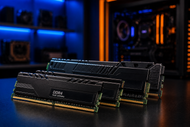
Think of your desktop memory as the workbench where your computer does all its live work. The bigger and faster that bench, the more your PC can handle at once without slowing to a crawl.
Storage keeps your files safe for the long run, but memory is what your machine actually uses moment to moment while you have apps open.
In 2026, software wants more from your hardware than ever. Browsers eat memory with dozens of tabs. Design tools, games, and business apps all fight for the same space.
When your PC runs out of room to work, everything stutters, freezes, or crashes. That single bottleneck is behind most of the sluggish behavior people blame on an "old" computer.
The good news is that picking the right memory isn't complicated once you know what to look for.
What Is Desktop Memory?
Desktop memory, often called RAM (random access memory), is the short-term space your computer uses to hold data it needs right now. It's volatile, which means it clears out every time you shut down. Nothing stays there permanently. It only holds what's active while your PC is running.
Here's an easy way to picture it. Your desk is the memory, and your filing cabinet is the storage drive. When you work on something, you pull it out and spread it across the desk. A bigger desk lets you keep more projects open side by side.
A small desk forces you to keep putting things back in the cabinet and pulling them out again, which wastes time. That constant back and forth is exactly what slows a computer with too little memory.
This is also why RAM is not the same as an SSD or hard drive. Your SSD and HDD hold your files, photos, and programs even when the power is off. They're built for capacity and permanence.
Memory is built for raw speed. It feeds your processor the data it needs in an instant. When people ask why their machine bogs down with lots of programs open, the answer almost always points back to running short on memory.
Evaluating RAM Capacity Needs for Modern Workloads
Capacity is the first number most buyers look at, and for good reason. It decides how much your PC can juggle before it starts choking. Here's how the common tiers break down so you can spot yourself quickly.
8GB covers the basics. If you mostly write emails, browse a handful of tabs, use word processors, and watch videos, 8GB keeps things moving. It's a fine floor for a simple office machine or a light home PC, though it fills up fast the moment you push it harder.
16GB is the sweet spot for most people today. It handles solid business multitasking, video calls with other apps running, spreadsheets, and mainstream gaming without breaking a sweat. If you're buying one desktop to do a bit of everything, this is the safe pick.
32GB has quietly become the standard for demanding 2026 software and heavy creative work. Video editing, 3D design, large datasets, and running several heavy programs at once all want this much room. Serious gamers who stream or keep many background apps open also benefit here.
64GB and beyond is territory for enterprise servers, data science, and running virtual machines. If you're stacking multiple operating systems on one box or crunching massive workloads, this range stops memory from ever being your limit.
A quick tip: it's smarter to buy a little more than you think you need today. Software only grows hungrier over time, and having headroom saves you from another upgrade sooner than you'd like.
Clock Speeds and Latency Explained Simply
Capacity tells you how much your memory holds. Speed tells you how fast it moves data around. Two sticks with the same size can perform differently, so this part is worth a look.
Memory speed is measured in MegaTransfers per second, which you'll often see written as MHz on the box. A higher number means the memory can shuttle more data in the same slice of time. For most everyday tasks, the difference is small, but for gaming and creative work, faster memory can give you a real edge.
Then there's CAS Latency, usually shown as a set of numbers like CL30 or CL36. This measures how many clock cycles the memory waits before it starts handing over data. Lower is better here. A stick with tight, low timings responds quicker.
The trick is that speed and latency pull against each other. A very fast stick with loose timings might not beat a slightly slower stick with tight ones.
What you want is a good balance rather than chasing the biggest speed number alone. Buying a well-matched kit from a single set solves this for you, since it's tuned to work together.
One more thing worth checking: your memory usually won't run at its rated speed straight out of the box. You turn that on in your motherboard's settings with a profile called XMP on Intel systems or EXPO on AMD systems.
Make sure your motherboard supports the speed you're buying, or you'll be paying for performance you can't reach.
Understanding the Difference Between DDR4 & DDR5 Generations
DDR5 is the current generation, and DDR4 is the outgoing one that's still everywhere. Knowing which your system takes is the single most important compatibility check you'll make.
Start with the physical side. DDR5 and DDR4 sticks look similar, but the notch cut into the bottom sits in a different spot. That's on purpose.
It stops you from forcing a DDR5 stick into a DDR4 slot or the other way around. Your motherboard supports one type, not both, so you can't mix generations no matter how tempting it seems.
The differences run deeper than the notch, though. DDR5 moved power management onto the memory stick itself with a small chip called a PMIC.
DDR4 handled that job on the motherboard. This shift gives DDR5 cleaner, steadier power and helps it hit those higher speeds reliably.
DDR5 also splits each module into two independent channels rather than one. That design lets the memory feed data to your processor more efficiently, which adds up to better real-world bandwidth. For fresh 2026 builds, DDR5 is the clear direction.
That said, don't write off older generations. Plenty of business fleets still run DDR4 and even DDR3 machines that work perfectly fine.
When you need to expand or repair those existing systems, sourcing matching legacy memory is smarter than replacing whole computers. The right move depends on what you already own, not just what's newest.
Not sure how much memory your build actually calls for? We break the whole question down in our guide: Memory Reality Check: How Much Computer RAM Does Your PC Exactly Need in 2026? It maps real usage to real numbers so you stop guessing and buy the right amount the first time. Pair it with this article, and you'll have both the "how much" and the "how to choose" fully covered.
Form Factors and Physical Architecture Rules
Getting the right generation is half the battle. The other half is making sure the stick physically fits your machine. This is where a lot of returns happen, and it's easy to avoid.
Desktop memory uses a format called DIMM. These are the long sticks built for the roomy layout inside a desktop tower. When you're shopping for a desktop PC, DIMM is what you want, plain and simple.
Watch out for SO-DIMM, which looks like a shorter version of the same thing. Those compact sticks are made for laptops and mini-PCs, not full-size desktops. They won't fit your desktop board, so double-check the label before you buy.
Two more physical points catch people off guard. First, taller memory sticks with big heatsinks can bump into large CPU coolers. If you run a chunky air cooler, measure your clearance or pick lower-profile sticks so everything closes up neatly.
Second, plenty of memory now comes with RGB lighting. It looks great in a gaming rig with a glass side panel, but it adds nothing to performance. For an office or server setup, plain sticks do the same job for less money.
Simple Tips for Upgrading Desktop Memory Effectively
Adding memory is one of the easiest upgrades you can do yourself. A little care makes it smooth and safe. Here's how to do it right.
Before you touch anything, deal with static electricity. A small zap you can't even feel can damage memory. Shut the PC down, unplug it, and touch a bare metal part of the case to ground yourself. An anti-static wrist strap is even better if you have one. This one step protects your parts.
Next, know your slots. Most boards have four memory slots, and they're color-coded or numbered for a reason. To turn on dual-channel mode, which gives you a nice speed boost, you usually fill slots 2 and 4 first when running two sticks.
Your motherboard manual shows the exact pattern, so check it rather than guessing. Getting this right is free performance.
When you seat a stick, line up the notch on the memory with the ridge in the slot. It only goes in one way. Open the clips on the ends, press the stick down firmly and evenly until both clips snap shut on their own. That click tells you it's fully seated. Don't force it at an angle.
Once it's in, power up and confirm the system sees it. On Windows, open Task Manager, click the Performance tab, and look at the memory reading.
If it shows the total you installed, you're done. If the number looks off, reseat the stick and check again. That quick check saves you from wondering later.
Conclusion
The right memory is what stands between a snappy machine and one that lags, stalls, and crashes when you need it most.
Match your capacity to your real workload, pick the correct generation for your board, mind the physical fit, and you've solved the bottleneck that frustrates so many users.
Treating memory as an investment pays off. Whether you're keeping a corporate fleet running for years or building a gaming rig you won't outgrow next season, buying smart today means fewer headaches and upgrades down the road.
When you're ready to source memory you can trust, Newtown Spares is here to help. We supply reliable, compatible RAM for desktops of every kind, from current DDR5 builds to legacy systems that still earn their keep.
Reach out and get hardware that fits your setup and scales with your needs.
Frequently Asked Questions
A: For a new build, yes. DDR5 offers higher speeds, better bandwidth, and improved power handling, which helps with gaming and heavy multitasking. But it only works if your motherboard and processor support it. If your current system runs DDR4, upgrading within DDR4 is often the more sensible and affordable path.
A: For most people, 16GB of DDR4 or DDR5 at a solid speed hits the sweet spot for daily work, browsing, and gaming. Creative professionals and power users should look at 32GB. Buy from a matched kit so the sticks are tuned to run well together.
A: For memory, 16GB suits most users; 32GB suits creators and heavy multitaskers. For storage, a 500GB SSD is a comfortable starting point, while 1TB gives you breathing room for lots of files, games, and programs. They handle different jobs, so pairing enough of both keeps your PC fast and roomy.
A: Check your motherboard's supported memory type, either DDR4 or DDR5, along with the maximum speed and capacity it accepts. The board manual or its product page lists this. You also want to confirm the number of slots and whether they're already filled before you buy.
A: Gamers do well with 16GB to 32GB of DDR5 at a fast speed with tight timings, run in dual-channel mode. Enabling your XMP or EXPO profile in the BIOS makes sure that speed actually kicks in. Balance is key, so a well-matched kit beats chasing one huge number.
A: Yes. If you're unsure which memory fits your system, we can point you to the right type, speed, and capacity for your board. Whether you run a modern rig or an older corporate machine, we help you match memory correctly so it works the first time.