Where did all your storage go after one year of photos, apps, invoices, scans, videos, backups, and project files?
That question feels familiar because storage needs have changed fast. A few years ago, a 500GB drive felt enough for many people. In 2026, a phone can fill that space with photos and video. A small office can fill several terabytes with customer files, design work, accounting records, CCTV footage, email archives, and shared documents.
Storage devices now affect more than space. They affect speed, safety, cost, and daily work. A slow PC storage device can make a good computer feel old. A weak backup plan can put years of work at risk. A poor business storage setup can slow down teams, delay projects, and expose private data.
The shift is clear. Hard Disk Drives still matter for bulk storage. Solid State Drives are now the normal choice for fast computers. NVMe drives serve heavy workloads. Cloud Storage helps users access files from many devices.
NAS and RAID Storage help teams share files and protect business data. NVMe is now an industry standard for SSDs across form factors such as M.2, U.2, AIC, and EDSFF, and the NVMe 2.3 specifications were released on August 5, 2025.
What Are Storage Devices in 2026?
Storage Devices
Storage devices are hardware or online systems that save your data so you can open it later. Your documents, photos, videos, apps, databases, backups, and operating system all sit on some form of storage.
A storage device can live inside your computer, connect from outside, sit on your office network, or run through a cloud service. Lenovo describes storage devices as hardware parts that store, retrieve, and manage data on a computer.
Their Role in Modern Computing
Storage sits at the center of every computer task. When you open a file, install an app, load a game, start Windows, edit a video, or search a database, your system reads data from storage.
Speed matters here. A slow Desktop Hard Drive can delay boot time and file access. An SSD can make the same computer feel faster because it has no moving parts and reads data far more quickly than a mechanical drive.
Storage also affects reliability. If a drive fails and you have no backup, you may lose the only copy of your data. That’s why storage decisions should never focus on capacity alone.
Growing Need for Efficient Storage
Data keeps growing because people and businesses create more files every day. IDC’s Global DataSphere tracks how much data the world creates, captures, copies, and stores across media such as HDD, SSD, NAND, optical, and tape.
A home user may need storage for photos, games, phone backups, and school files. A business may need storage for customer records, shared folders, email exports, project files, printer logs, cloud files, and backups. Fast and reliable storage now protects both time and money.
Types of Storage Devices in 2026
Hard Disk Drives (HDDs)
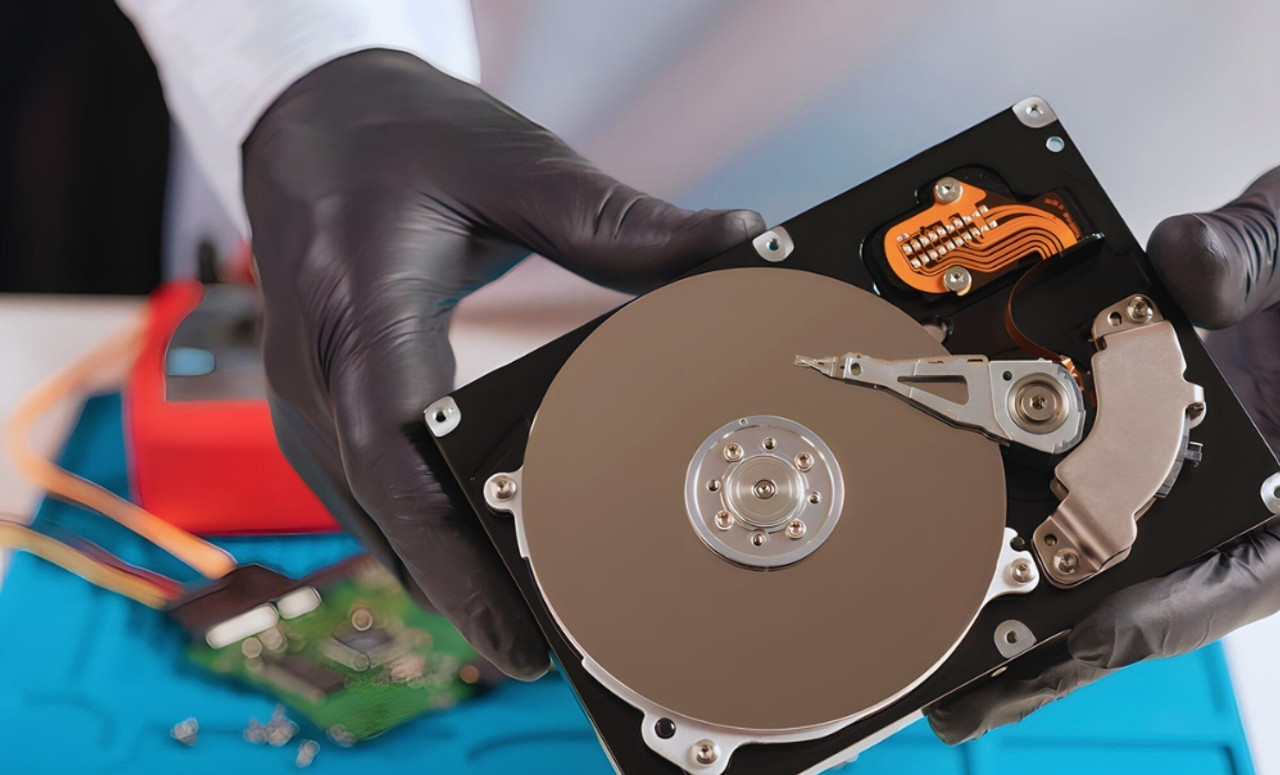
Hard disk drives use spinning magnetic platters to store data. They cost less per terabyte than SSDs, so they still work well for bulk storage, large backups, CCTV archives, media libraries, and cold data.
HDDs are slower because they rely on moving parts. They also need more care around drops, vibration, and heat. For big storage at a lower cost, they still make sense.
Solid State Drives (SSDs)
Solid State Drives use flash memory. They don’t have spinning platters, so they open files faster, run quietly, and handle movement better than HDDs. SSDs are ideal for operating systems, business laptops, office desktops, creative apps, and daily work files.
A SATA SSD can revive an older laptop. An NVMe SSD can serve users who move large files or run heavy software. For most people, an SSD gives the biggest real-world speed gain.
NVMe Drives
NVMe drives are SSDs that use a faster communication path than older SATA SSDs. They connect through PCIe and reduce the delay between the storage drive and the processor.
NVMe drives work best for video editing, gaming, software builds, virtual machines, databases, 3D work, and high-performance storage devices for data centers and servers. NVMe also supports transports beyond PCIe, including RDMA and TCP, which matters in enterprise storage designs.
Flash Drives & Storage Media
Flash drives, SD cards, microSD cards, and other Storage Media devices give quick, portable access. They’re useful for moving files, camera storage, installer drives, print shops, field work, and short-term backups.
Don’t use a cheap USB drive as your only backup. Flash media can fail, get lost, or corrupt files. Use it for convenience, not as your full data safety plan.
Network Attached Storage (NAS)
Network Attached Storage, or NAS, is a shared storage box connected to a home or office network. Instead of saving files on one person’s computer, teams can save them in one shared place.
NAS works well for small offices, design teams, accounting teams, local backups, media libraries, and shared project folders. Many NAS systems support RAID Storage, user permissions, remote access, and drive expansion. RAID standards define how data is laid out across disks in a RAID group.
Cloud Storage Solutions
Cloud Storage saves files on provider-managed servers and lets users access them through the internet. Google Drive, OneDrive, Dropbox, and similar tools help with file sharing, remote work, and team access.
Google Workspace business plans use pooled storage across the organization, with Business Starter at 30GB per user, Business Standard at 2TB per user, and Business Plus and Enterprise Plus at 5TB per user.
Dropbox business plans list team storage, file transfer, admin controls, and restore windows for business use. Microsoft 365 includes OneDrive for saving, accessing, editing, and sharing files across devices.
For many businesses, the best cloud storage for business is not one tool alone. It’s the service that fits your files, team size, security needs, and backup plan.
Storage Devices by System & Use Case
Desktop Hard Drives
A Desktop Hard Drive gives high-capacity storage for home PCs, office computers, media systems, and backup stations. Use HDDs for large folders that don’t need instant speed, such as archived photos, old projects, local backups, and video libraries.
Use an SSD as the main system drive and an HDD as extra storage when you need both speed and capacity.
Laptop Hard Drives
A laptop hard drive must fit in a smaller space and use less power. In 2026, most laptop upgrades should move toward SSD or NVMe storage. A laptop with an SSD starts faster, opens apps faster, and feels more responsive.
Check the laptop’s slot before buying. Some laptops accept 2.5-inch SATA drives. Many newer models use M.2 NVMe drives.
Server Hard Drives
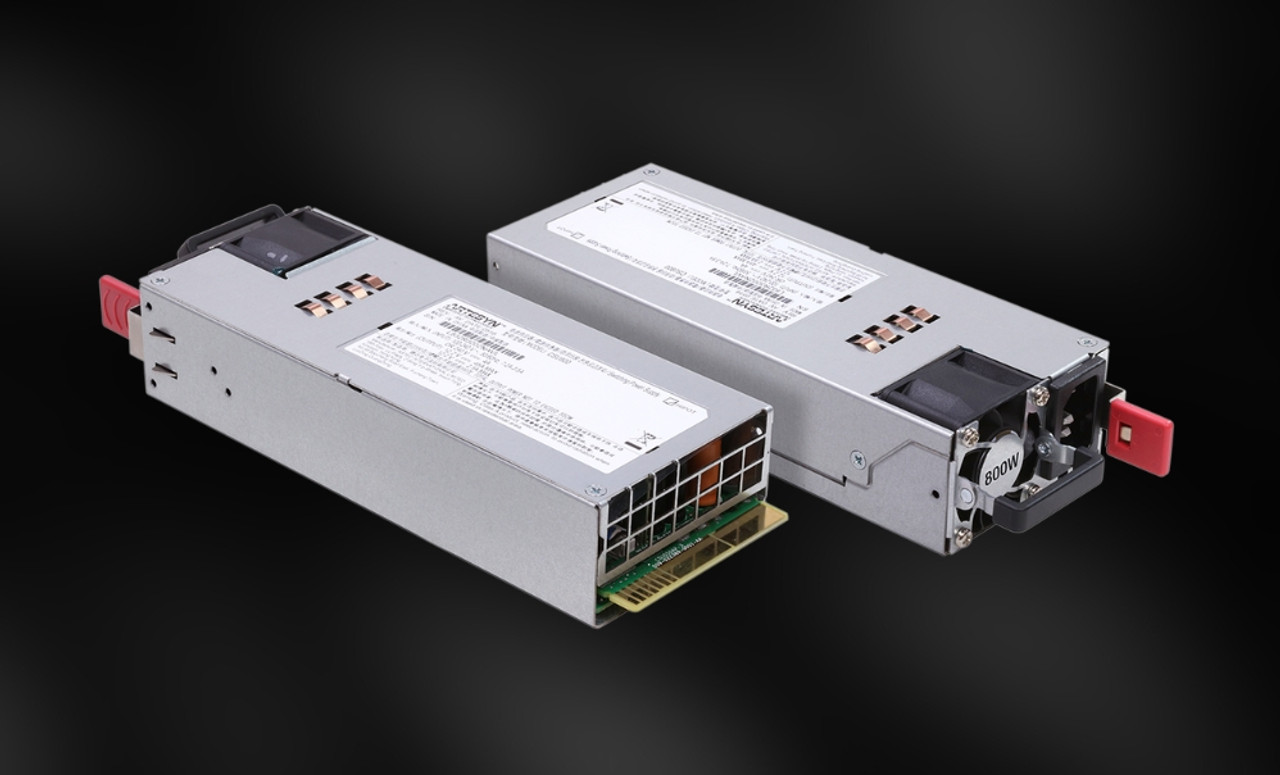
A server hard drive is built for long-running hours, heavier workloads, and storage arrays. Servers may use enterprise HDDs, enterprise SSDs, NVMe drives, RAID arrays, or SAN systems.
Backblaze monitored 349,462 hard drives at the end of 2025 and analyzed 344,196 drives across 30 models for its yearly drive failure report. That kind of fleet data shows why businesses should choose server drives by workload, model history, warranty, and environment, not price alone.
Printer Hard Drives
Many enterprise printers and copiers contain internal storage. They may hold print jobs, scanned documents, user data, or logs. The FTC warns businesses to secure data that may remain on a copier's hard drive, especially when returning a leased copier or disposing of one.
A printer hard drive matters for offices that print contracts, medical forms, payroll files, legal papers, or customer records.
Storage Media Devices
Storage Media Devices include USB drives, memory cards, optical discs, and portable SSDs. They’re useful for quick transfer, camera files, field work, boot drives, and temporary client delivery.
Match the device to the job. A photographer may need fast SD cards. A technician may need a bootable USB drive. A video editor may need a portable SSD with USB4 or Thunderbolt support.
Choosing the Right Storage Device for Different Needs
Personal vs Business Needs
A personal user may need a mix of an internal SSD, an external backup drive, and cloud sync. A business needs more structure: shared access, user permissions, backup schedules, version history, security controls, and recovery planning.
For reliable storage solutions for small and medium businesses, a good setup may include NAS for local sharing, cloud storage for remote access, external storage devices for extra backup, and clear restore testing.
Key Factors to Consider
Choose storage by speed, capacity, price, connection type, warranty, and device fit. A cheap drive that doesn’t fit your laptop is wasted money. A fast NVMe drive in a slow USB case won’t reach its full speed. A large external hard drive may suit backups, but not active video editing.
Also, check the interface. USB4 test and compliance materials remain active through USB-IF, with USB4-related documents updated in 2026. Thunderbolt 5 offers 80Gbps bidirectional bandwidth and up to 120Gbps with Bandwidth Boost, but your device, cable, and drive must support it to benefit.
Data Security & Backup
A backup should protect you from drive failure, theft, accidental deletion, ransomware, and natural damage. The 3-2-1 rule means keeping three copies of data, on two storage types, with one copy stored off-site.
For business files, add encryption, access controls, restore testing, and clear ownership. A backup you never test is only a hope.
Comparing Storage Device Performance
Speed & Efficiency
HDD vs SSD vs NVMe is easy to understand in daily use. HDD works for large, low-cost storage. SSD works for fast everyday computing. NVMe works for heavy read and write tasks.
Use HDDs for archives and large backups. Use SSDs for boot drives and work files. Use NVMe for editing, gaming, databases, virtual machines, and server workloads.
Cost Comparison
HDDs give more space for less money. SATA SSDs cost more but feel much faster. NVMe drives cost more again, but they serve demanding work better.
For most homes and offices, the best value comes from mixing storage drives: SSD or NVMe for active files, HDD or NAS for bulk storage, and Cloud Storage for access and off-site backup.
Durability & Reliability
SSDs handle drops better because they have no moving platters. HDDs can last for years, but vibration, heat, age, and workload affect them. Backblaze’s 2025 data shows drive reliability can vary by model, fleet age, and use conditions.
No drive deserves blind trust. Every storage device can fail.
Storage Solutions for Businesses & Enterprises
SMB Storage Solutions
Small and medium businesses need storage that staff can use without confusion. Common choices include NAS, external backup drives, cloud storage, and shared Microsoft 365, Google Workspace, or Dropbox folders.
The right setup should answer four questions: Where do active files live? Who can access them? How are files backed up? How fast can the business restore them?
Enterprise Storage Systems
Large companies may use SAN, RAID arrays, enterprise NAS, object storage, NVMe storage, and hybrid cloud systems. These setups support databases, virtual servers, analytics, user files, large media libraries, and compliance needs.
Enterprise teams also track heat, drive health, firmware, access logs, and replacement cycles. Storage at this level isn’t only a device purchase. It’s a managed system.
Backup & Disaster Recovery
A business recovery plan covers hardware failure, deletion, cyberattack, fire, flood, power events, and employee error. Backups should include local restore speed and off-site safety.
Cloud sync alone does not replace backup. If a user deletes a shared folder and that deletion syncs everywhere, the cloud may copy the mistake unless version history or backup rules catch it.
Future Trends in Storage Devices
NVMe & PCIe 5.0 Growth
NVMe will keep moving into desktops, laptops, workstations, and servers. PCIe 5.0 drives already serve users who need very high transfer speeds, though heat control matters with faster drives.
The NVMe standard continues to expand beyond basic SSD use, with features for zoned namespaces, key value storage, rotational media, and endurance group management in NVMe 2.3.
AI & Big Data Storage
AI tools, video systems, analytics platforms, and large databases need faster and larger storage. These workloads don’t only need space. They need low delay, high read speed, high write endurance, and fast recovery.
Data centers will keep using both HDDs and SSDs. HDDs help with capacity. SSDs and NVMe help with speed-sensitive workloads.
Hybrid Cloud Solutions
Hybrid storage mixes local systems with cloud access. A business may keep active work on NAS, sync selected folders to the cloud, and store backups off-site.
This approach helps teams work faster on local files while still getting remote access and extra protection.
Edge Computing Storage
Edge storage keeps data close to where it’s created. Retail systems, factories, clinics, smart cameras, and branch offices may process data locally before sending selected data to the cloud.
This lowers delay and reduces the amount of data that must travel across the internet.
Practical Tips for Maintaining Your Storage Devices
Backup Strategies (3-2-1 Rule)
Keep three copies of your data. Use two storage types. Keep one copy off-site. This gives you a better chance of recovery when one device fails or one location becomes unsafe.
Maximizing Storage Lifespan
Keep drives cool, dry, and stable. Avoid sudden drops. Use a surge protector. Replace old drives before they become a problem. Watch for warning signs like clicking sounds, slow file access, repeated errors, or sudden disconnects.
SSD Optimization Tips
Leave free space on SSDs. Update firmware when the maker recommends it. Avoid filling the drive to the last few gigabytes. Don’t defragment SSDs like old HDDs because SSDs manage data differently.
Temperature & Environment Control
Heat shortens drive life. Dust blocks airflow. Vibration can harm HDDs. Place desktop drives and NAS boxes where they get airflow and sit on a stable surface.
Difference Between New and Refurbished Storage Devices Explained
New Storage Devices
New storage devices come unused, with full warranty, fresh packaging, and no prior wear. Use new drives for main computers, business records, servers, RAID Storage, and any data you can’t risk.
Refurbished Storage Devices
Refurbished drives may come from returns, repairs, or tested stock. Some sellers test them well. Others only check basic power-on status. Always ask for health reports, warranty length, return policy, and total power-on hours.
Performance Differences
A refurbished SSD may still feel fast if its health is good. A refurbished HDD may work fine for light use. The problem is hidden wear. Prior workload, heat, shocks, and write history can affect future reliability.
Cost Comparison
Refurbished storage costs less upfront. That saving makes sense for testing, lab work, non-private files, or temporary storage. It does not make sense for a company’s only backup or a server that runs daily.
Reliability and Risk Factors
The main risk is unknown history. A refurbished drive may have years of use behind it. A weak seller may not share proper test data. A short warranty gives you little room if the drive fails.
Use Case Scenarios
Use new drives for business storage devices, boot drives, client files, medical records, legal files, RAID arrays, and long-term backup. Use refurbished drives for learning labs, spare parts, test machines, or non-critical storage where you already have another copy.
Storage is only one part of a reliable computer setup. If you’re planning upgrades, repairs, or replacements, read our Ultimate Guide to Computer Hardware Parts & Replacements in 2026. It connects storage devices with CPUs, RAM, motherboards, power supplies, cooling, graphics cards, and other parts so readers can understand how each component affects the full system.
Conclusion
Storage is not just space. It shapes speed, security, backup strength, and room for growth.
For personal use, a fast SSD or NVMe drive plus an external backup and cloud access can cover most needs. For business use, storage needs more planning. Teams need shared access, backups, permissions, RAID where suitable, cloud support, and clear recovery steps.
The right storage choice can make a computer faster, protect years of data, and help a business work without constant file problems. Choose storage by real use, not by size alone.
Frequently Asked Questions
A: The best storage device for a business in 2026 is usually a mix of NAS, SSD or NVMe storage, cloud storage, and tested backups. A small team may do well with NAS plus Google Workspace, Microsoft 365, or Dropbox, while a larger company may need server storage, RAID, SAN, and disaster recovery planning.
A: Upgrade your storage device when your computer feels slow during file access, your drive stays almost full, your apps load slowly, or your drive shows errors. You should also upgrade before moving to heavier work, such as video editing, large databases, virtual machines, or shared team files.
A: SSDs can last for years when users leave free space, avoid extreme heat, and stay within the drive’s write rating. Heavy write workloads, poor cooling, and cheap low-end drives can shorten SSD life.
A: SSD is the storage type, while NVMe is a faster protocol used by many modern SSDs. A SATA SSD is faster than an HDD, but an NVMe SSD can move data much faster when the computer and workload support it.
A: Cloud storage solutions can work well for businesses when they include admin controls, version history, user permissions, and backup planning. Cloud sync alone is not enough because synced deletion or ransomware damage can spread if the account lacks proper recovery controls.
A: RAID combines multiple drives so data can be spread, mirrored, or protected across them. RAID can help with uptime and drive fault handling, but it does not replace a separate backup.
A: Choose internal storage for speed, operating systems, apps, and daily files. Choose external storage devices for backups, file transfer, extra space, and portable work.
A: For long-term backup, many users choose external HDDs, NAS, cloud backup, or tape in larger business settings. The safest plan uses more than one storage type and keeps at least one copy away from the main device or office.