
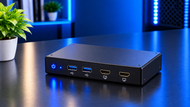
A: It lets you control several computers using one keyboard, one monitor, and one mouse, switching between machines instantly without rebooting or unplugging anything.
Two computers sitting on one desk sounds fine until you count the clutter. Two keyboards. Two mice. Maybe two monitors, or one monitor you keep unplugging and replugging every time you switch machines. A KVM switch fixes that headache by letting one set of controls run several computers.
The name tells you the job: Keyboard, Video, Mouse. You plug your keyboard, monitor, and mouse into the switch once, then run a cable from the switch to each computer.
Press a button or tap a hotkey, and your screen and controls jump to whichever machine you picked. The other computers keep running in the background. Nothing shuts down, nothing reboots.
The core idea is simple. One person, one set of input devices, many machines. A sysadmin with a work laptop, a test box, and a home desktop doesn't want three keyboards fighting for desk space. With a computer KVM switch, all three answer to the same keyboard.
Switching happens in under a second on most modern units. Tap Scroll Lock twice, or press a button on the front panel, and your mouse cursor is already moving on the next machine.
Good KVM switches don't stop at keyboard, video, and mouse. Many carry a small USB hub, a headphone jack, and a microphone input. That means your webcam, your audio interface, your printer, and your external drive follow you from machine to machine without touching a single cable.
This part matters more than people expect. A decent webcam and a good headset cost real money. Buying a second set just so your test machine can join a call makes no sense.
Every computer you remove from your desk takes its cable bundle with it. One keyboard cable instead of three. One mouse cable. One display cable running to your monitor. The computers themselves can sit under the desk or in a rack, and you never touch them.
Your keyboard plugs into a dedicated port on the switch, marked with a small keyboard icon. Older units used PS/2 round connectors. Anything sold today uses USB.
The dedicated port matters because it handles hotkey detection, so the switch can watch for your switching command without passing it through to the computer.
Mechanical keyboards with onboard software sometimes need the USB hub port instead of the keyboard port. Worth checking the manual for yours.
Video is the demanding part. The switch has to carry the full signal from each computer's graphics output to your monitor without dropping quality. Bandwidth limits are real here.
An HDMI 2.0 switch tops out around 18 Gbps, which covers 4K at 60Hz. HDMI 2.1 units push 48 Gbps and handle 4K at 120Hz or 8K at 60Hz.
If you buy a switch rated below your monitor's capability, your display drops to a lower refresh rate, and you'll notice.
Same story as the keyboard. A dedicated USB port, with the switch emulating a mouse presence on every connected computer.
That emulation stops Windows and macOS from running the "new device found" routine every time you switch back.
Gaming mice running at 1000Hz polling can overwhelm cheaper switches. Units built for gaming handle this properly and keep pointer movement smooth.
On the back you'll find one set of ports per computer. A 2-port model has two groups, a 4-port has four, and rack units go up to 8 or 16.
Each group needs a USB cable for data and a video cable for the picture. Some brands bundle these as a single combined cable to cut down on mess.
A USB KVM switch handles both the input devices and the data link back to each computer. USB 2.0 is fine for keyboards and mice.
If you're sharing a webcam, an external SSD, or an audio interface, look for USB 3.0 or higher on the shared hub ports, because 480 Mbps won't carry 1080p video plus file transfers.
USB-C changed things recently. A single USB-C cable can carry video, data, and up to 100W of power to a laptop, so one cable does everything a three-cable setup used to.
An HDMI KVM switch is the most common type people buy for home and small office use. HDMI is on nearly every monitor and TV, cables are cheap, and the signal carries audio along with the picture.
Check the version number on the box. HDMI 2.1 supports high-refresh gaming or 8K panels. HDMI 2.0 is fine for a standard 4K 60Hz office monitor.
DisplayPort shows up on units aimed at workstations and monitors with high refresh rates. DisplayPort 1.4 carries 32.4 Gbps and supports Display Stream Compression, which stretches that bandwidth further. DisplayPort 2.1 goes higher still.
DVI and VGA units still sell, mostly for older industrial equipment and lab machines that never got upgraded. Mixed-interface models exist too, so a VGA machine and an HDMI machine can share the same monitor through active conversion.
Beyond video, look at what else the switch carries. 3.5mm audio in and out. USB 3.0 hub ports. Some rack models include serial ports for network gear. A dual-monitor KVM doubles the video ports on every group so both of your screens follow the switch.
Three methods dominate. Front-panel buttons, which never fail and never conflict with software. Hotkeys, which keep your hands on the keyboard. And wired remote controls on a short cable, handy when the switch itself lives behind your monitor.
A few newer models add mouse-based switching, where you drag the cursor past the edge of the screen and control hops to the next machine.
Once connected, both machines see a keyboard and mouse permanently attached, even while you're working on the other one. No reconnection delay, no driver reload, no lost keystrokes during the first half second after a switch.
Here's where EDID emulation earns its keep. EDID is the small block of data your monitor sends to tell a computer what resolutions it supports.
Without emulation, the inactive computer loses that information, decides no monitor is attached, and rearranges your desktop icons. A switch with EDID emulation keeps feeding that data to every machine at all times, so windows stay exactly where you left them.
This single feature separates a good KVM switch from a frustrating one.
The practical result is that you stop thinking about hardware. Copy a file on one machine, switch, paste on another.
Run a build on the test box while you answer email on the work laptop. Keep a personal machine and a company machine on one desk without mixing them up.
Remote and hybrid workers run into this constantly. A company-issued laptop that can't have personal software on it, plus a personal desktop. One monitor, one keyboard, both machines.
Server rooms use rack-mounted KVM switches with a pull-out drawer holding a small screen and keyboard. One technician can reach 16 servers from a single slide-out tray. KVM over IP takes this further by carrying the same control over a network connection, so the technician doesn't need to be in the building.
Developers testing across Windows, macOS, and Linux keep separate machines and switch between them while writing code. Hardware testing labs do the same with boards under test.
Broadcast control rooms, trading desks, medical imaging stations, and industrial monitoring stations all run several dedicated machines that must stay live at once. Operators switch views constantly and can't afford a reboot or a lost session.
One good mechanical keyboard and one good mouse serve every machine. Your key remapping, your DPI settings, your muscle memory. All of it stays consistent no matter which computer you're driving.
A large monitor is a serious purchase. Running two of them just to service two computers wastes both money and desk space. A KVM switch for sharing peripherals puts that single panel to work across every machine you own.
Add up a second webcam, headset, printer connection, and external drive enclosure. The switch usually costs less than the duplicates, and you stop managing two copies of everything.
Buy for the machine count you'll have next year, not just today. Going from a 2-port to a 4-port later means rewiring everything.
Match the switch to your monitor's native resolution and refresh rate, then match it to your graphics outputs. A 144Hz 1440p panel needs a switch rated for that signal.
Count your USB devices. If you're sharing a webcam and an external drive, two hub ports won't cut it.
Cable length matters. HDMI signal quality drops past 5 metres on passive cable, so plan where the switch sits before you buy cables.
8K panels and 240Hz gaming monitors are pushing switch makers toward HDMI 2.1 and DisplayPort 2.1 across the range, not just on premium models.
USB4 and Thunderbolt 4 docking behaviour is showing up in newer KVM designs, combining video, 40 Gbps data, and laptop charging through one cable.
Software-assisted switching, cursor-edge detection, and network-based control are all growing. The hardware switch isn't going away, but the ways to trigger it keep multiplying.
If you want the wider picture on how switching hardware fits together across a network, our Comprehensive Guide to Hubs & Switches: All You Need to Know (2026) covers hubs, network switches, and how they differ from KVM units in both purpose and design.
A KVM switch does one job and does it cleanly. It takes several computers and puts them behind one keyboard, one monitor, and one mouse.
The technology has been around for decades, but the 2026 versions handle 8K video, USB-C power delivery, and gaming-grade input speeds that the old beige boxes never dreamed of.
Match the video standard to your monitor, count your USB devices honestly, check for EDID emulation, and pick a port count with a little room to grow.
Get those four things right, and you'll forget the switch is even there, which is exactly the point.
A: It lets you control several computers using one keyboard, one monitor, and one mouse, switching between machines instantly without rebooting or unplugging anything.
A: Keyboard, Video, Mouse. Those three devices are what the switch shares across your connected computers.
A: Desktops, laptops, servers, mini PCs, single-board computers, and industrial machines. Anything with a standard video output and a USB port will work.
A: Connect your keyboard, monitor, and mouse to the console side of the switch. Run a video cable and a USB cable from each computer to its own port group. Then press the front button or use the hotkey to change machines.
A: The switch keeps a connection open to every computer and routes your input devices to whichever one is active. Built-in USB hub ports extend the same sharing to webcams, drives, printers, and audio gear.
A: Yes. One monitor, one keyboard, one mouse, one webcam, and one headset serve every connected machine, which cuts both hardware spend and desk clutter.

Posted Sep 07, 2023

Posted Sep 07, 2023

Posted Sep 06, 2023
Posted Sep 05, 2023
Posted Sep 01, 2023

Posted Aug 30, 2023

Posted Aug 30, 2023