
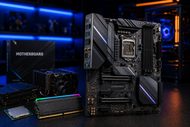
A: Choose the CPU first. Match its socket, chipset, BIOS, RAM, case, storage, slots, ports, cooling, and budget.
A motherboard choice can look easy until two parts refuse to work together. A board may fit the case but reject the processor, memory, or second SSD. Four memory slots can still accept only one memory generation.
Desktop motherboards decide which processors, memory, graphics cards, drives, cooling parts, and ports a computer can use.
A good match supports stable operation and upgrades. A poor match wastes money.
A desktop computer motherboard carries power and data between the processor, memory, graphics card, storage, cooling controls, audio, network hardware, and external ports.
The socket holds the CPU, memory slots hold RAM, and PCIe slots accept graphics or add-in cards. M.2 and SATA handle storage. Power and rear connectors serve the board and external devices.
Board layout affects airflow, cables, repairs, and upgrades. Check its diagram when a large graphics card or cooler may block nearby slots.
Start with the processor. A motherboard cannot accept every CPU, even when two chips come from the same brand.
Intel Core Ultra 200S desktop systems use LGA1851 with H810, B860, or Z890 chipsets. AMD Ryzen systems mainly use AM5 with B840, B850, X870, or X870E. AMD states that AM5 support will continue through 2029.
Choose the CPU family first, then compare boards made for that platform.
The socket must match, but also read the CPU support list. It names supported processors and required BIOS versions. Older stock may need an update before a newer CPU starts.
BIOS Flashback lets some boards update without a working CPU, which can prevent a difficult setup problem.
The form factor controls board size, mounting holes, slot count, and case fit.
ATX suits gaming PCs and workstations needing several cards or drives. It offers more headers, M.2 slots, and space.
Micro-ATX fits smaller cases while keeping room for a graphics card, several drives, and normal office or gaming use.
Mini-ITX fits very small cases, with two memory slots and one main PCIe slot. Check cooler height, card size, cables, and heat.
The chipset controls extra PCIe lanes, USB ports, SATA ports, tuning options, and expansion support.
Entry-level chipsets suit web, office, school, and low-cost builds, but may offer fewer fast ports and M.2 slots.
Mid-range chipsets suit most buyers, with better storage, networking, memory tuning, and expansion for gaming or work.
High-end chipsets suit many fast drives, add-in cards, CPU tuning, or high-speed devices. A basic PC gains little from the added cost.
To decide what chipset is best for desktop motherboard performance, list the features you will use.
A board supports DDR4 or DDR5, not both through the same slots. Their shapes and electrical designs differ.
To know if a motherboard supports DDR4 or DDR5, read its title, memory section, and support list. Check capacity, slots, speeds, and module sizes.
DDR5 fits current AM5 and LGA1851 platforms. DDR4 suits older platforms and low-cost upgrades using existing memory.
Fast ratings may require XMP or EXPO. The CPU, board, BIOS, and installed stick count affect stable speed.
List planned graphics, capture, sound, network, and storage cards. Check slot size and electrical lane count. A full-length slot may run at x4.
Large graphics cards can cover smaller slots, so study board photos and layout drawings.
PCIe 5.0 doubles PCIe 4.0 data rate per lane. Newer cards can work in older compatible slots, but the slowest part sets speed.
For gaming, one well-placed x16 slot matters most. Multi-GPU gaming has little value in 2026 because support remains limited, though several GPUs help selected rendering, AI, and compute work.
SATA ports connect 2.5-inch SSDs, hard drives, and optical drives. M.2 slots may support NVMe SSDs, SATA M.2 drives, or both.
To know whether a motherboard supports NVMe, find M.2 slots marked PCIe or NVMe. Check SSD length, generation, lane count, and CPU or chipset connection.
Read lane-sharing notes. An M.2 SSD may disable SATA or reduce another slot. RAID can join drives for speed or mirrored storage, but cannot replace backup.
Count needed ports and leave room for later devices. Check rear USB and internal case headers. USB-C describes the plug, not speed.
USB4 and Thunderbolt can carry fast data, displays, and dock connections, but board support differs. Read each port’s rating.
1GbE suits browsing and office use. 2.5GbE fits faster transfers and gaming PCs. 10GbE helps workstations and servers on matching networks.
Built-in Wi-Fi saves a slot. Bluetooth supports controllers, headsets, and keyboards. For audio, check needed inputs and outputs, not a “gaming audio” label.
The voltage regulator module, or VRM, changes supply power into the steady voltage a CPU needs. Strong processors add load. Good parts and heatsinks support stable power.
Do not judge only by phase count. Controller design, parts, cooling, and testing matter.
Check VRM and M.2 heatsinks. Count CPU, case, pump, and fan headers. Confirm their control type and supported power draw.
Liquid cooling users need a pump header, enough radiator fan headers, and clear space around the socket.
A gaming desktop motherboard needs a suitable GPU slot, M.2 storage, stable CPU power, fast networking, and enough USB. Lighting comes later.
An office PC motherboard needs stability, display outputs, dependable networking, USB, quiet fan control, and easy replacement. Company systems may need security or remote management.
Workstation boards may need more PCIe lanes, memory, storage links, network speed, and specialist cards. ECC support depends on the CPU, chipset, board, and BIOS.
For a wider view across home, work, and gaming systems, read Choosing the Right Motherboard in 2026: Complete Guide for Work, Business, and Gaming PCs. It compares board types for different users and budgets.
Desktop motherboard buying mistakes begin with skipped checks. Buyers match the socket but miss the CPU list, BIOS, memory, cooler, or case size.
Some pay for unused ports and controls. Others find that a graphics card blocks the only spare slot. M.2 lane sharing can remove needed SATA or PCIe connections.
Before buying used, inspect pins, corrosion, burns, damaged ports, missing parts, and repair marks. Ask for a startup test. This helps identify signs of a bad motherboard before buying, though visual checks cannot confirm operation.
Confirm the CPU, socket, chipset, and BIOS. Check RAM generation, capacity, slots, and tested modules. Review storage, PCIe, USB, display, audio, network, Wi-Fi, and Bluetooth.
Confirm case size, cooler clearance, card space, power connectors, fan headers, and front headers. Read lane-sharing notes and compare prices by features used.
To check a desktop motherboard model in Windows, open System Information and read BaseBoard Manufacturer, BaseBoard Product, and BaseBoard Version. The model also appears on the board.
A: Choose the CPU first. Match its socket, chipset, BIOS, RAM, case, storage, slots, ports, cooling, and budget.
A: Entry boards cover basic needs. Mid-range boards add storage, ports, and tuning. High-end boards serve heavy expansion and demanding processors.
A: It is better only when you need wireless access or Bluetooth. Ethernet gives a steady connection and avoids wireless interference.
A: No. Check for an M.2 slot with PCIe NVMe support. Some M.2 slots accept only SATA drives.
A: You can reuse parts only when the board supports their CPU socket, RAM, case, cooler, power supply, storage, and connectors.
A: A quality board can work for many years. Heat, unstable power, dust, moisture, heavy tuning, and worn ports can shorten its life.
A: They use different slots and electrical designs. The RAM generation must match the board.
A: SATA uses the older SATA link. NVMe uses PCIe lanes and can reach much higher transfer speeds.
A: Yes, but pay only for likely upgrades. Spare memory slots, extra M.2 space, suitable power delivery, and a supported CPU path offer practical room.

Posted Sep 07, 2023

Posted Sep 07, 2023

Posted Sep 06, 2023
Posted Sep 05, 2023
Posted Sep 01, 2023

Posted Aug 30, 2023

Posted Aug 30, 2023