Files pile up faster than most of us plan for. One phone shooting 4K video can eat 60 GB in a weekend.
A five-person design team can burn through a terabyte a month without trying. And the moment more than one person needs the same file, the trouble starts: someone emails version 3, someone else edits version 2, and the USB drive with the real final copy is sitting in a drawer at home.
Network Attached Storage fixes that mess by giving everyone one shared place to put things.
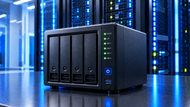
A NAS storage device plugs into your network, holds all your files in one spot, and lets every approved computer or phone reach them at the same time.
What Is Network Attached Storage (NAS)?
Network Attached Storage (NAS) is a dedicated storage box that connects to your network instead of to a single computer, so multiple people and devices can read and write the same files at once.
It runs its own small operating system, holds two or more drives, and works around the clock without needing a PC switched on beside it.
A NAS storage device is really a stripped-down computer built for one job. It has a processor, memory, an Ethernet port, and drive bays. What it doesn't have is a monitor or keyboard. You set it up and manage it through a web page in your browser, the same way you log in to your router.
That's where it splits from traditional storage. An external hard drive talks to one machine through a USB cable, so whoever holds the cable owns the data.
A NAS server talks to your whole network, so ten people can pull from it at once while it quietly runs backups in the background. Internal drives inside a laptop have the same problem as USB drives: the files live on one machine, and if that machine dies or walks out the door, so do the files.
How Does a NAS Storage Device Work?
A NAS works by joining your network as its own device with its own address, then sharing folders over standard file protocols that every operating system already understands.
Setup is short. You slot the drives in, run an Ethernet cable from the NAS to your router or switch, and power it on. The unit picks up an IP address, and you open that address in a browser to reach the dashboard.
From there, you create shared folders and decide who gets into them. Accounts is a big part of the job: the accounts team sees the accounts folder, the design team sees the design folder, and nobody sees the payroll folder except the two people who should. You set read-only or read-and-write access per user or per group.
Windows machines connect over SMB, Mac and Linux machines use SMB or NFS, and the shared folder shows up like any other drive on the computer.
Phones and tablets get in through the maker's app, which is also how automatic photo backup from a phone happens. Nothing has to be dragged anywhere. Shoot a photo, and it lands on the NAS file storage the next time the phone touches Wi-Fi.
NAS is one option among many, and the right pick depends on whether you need speed, portability, shared access, or long-term archiving. Our Complete Storage Devices Guide 2026: Types, Features & Practical Uses walks through internal drives, external drives, SSDs, flash media, and network storage side by side, so you can see exactly where a NAS fits before you spend anything can provide useful background.
Inside a NAS Storage Device: The Parts That Matter
Storage Drives
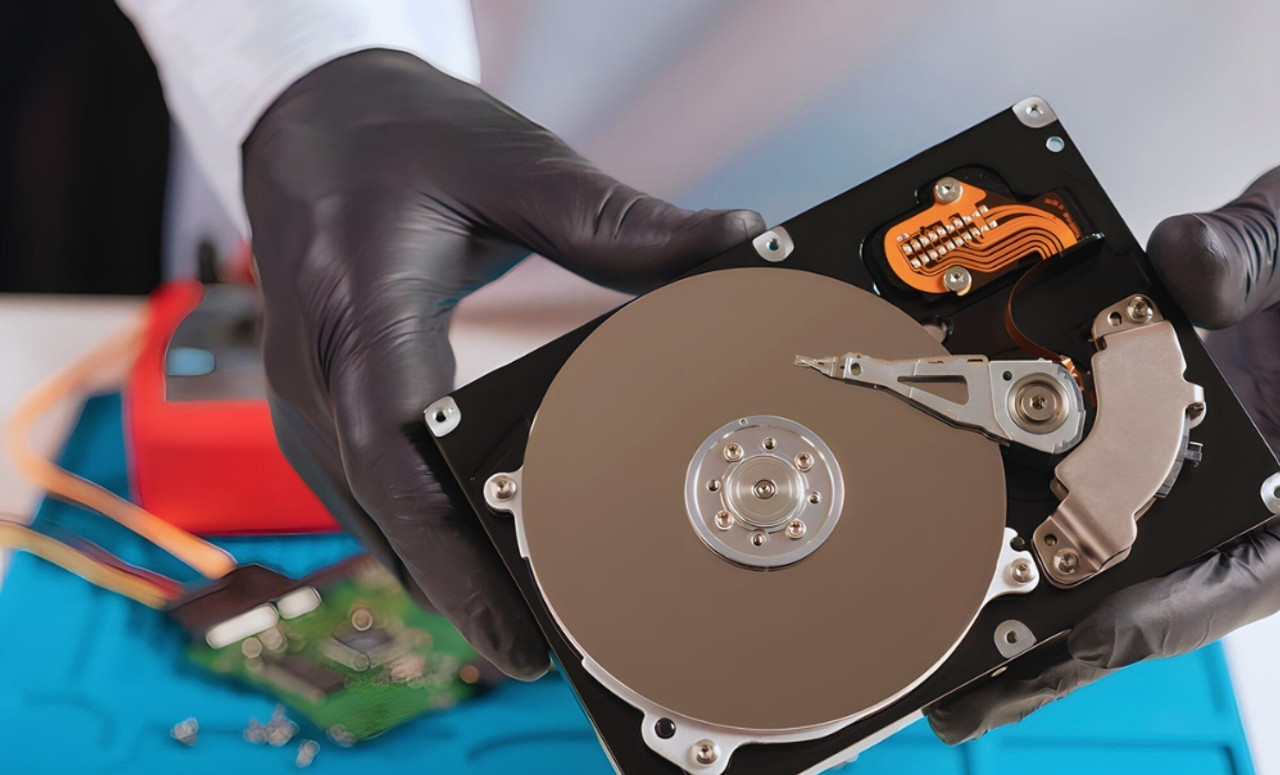
Hard drives still carry the bulk of NAS capacity because they cost far less per terabyte. NAS-rated models such as WD Red and Seagate IronWolf are built for 24/7 spinning and include vibration handling for multi-drive bays, which desktop drives skip.
Capacities for NAS-class drives now reach the mid-20 TB range, and 36 TB HAMR drives are arriving for data centre use.
SSDs go in for speed. Many units add M.2 NVMe slots, so flash can act as a cache for thumbnails, databases, and small files that hard drives handle slowly.
All-flash NAS units exist too, and creators editing video straight off the box are the main buyers.
NAS Processor and Memory
The processor decides how much the box can do at once. Serving files to four people is light work. Running photo indexing, video transcoding, containers, and a surveillance recorder at the same time is not.
Memory matters just as much. Look for 4 GB as a floor, with room to add more. Soldered 2 GB on a budget unit will feel fine on day one and painful two years later.
Newer models ship with DDR5 and, on higher tiers, an NPU that speeds up face recognition and media conversion on the device itself.
Network Connectivity
Your network is the ceiling on real-world speed. A 1 Gigabit Ethernet port tops out near 110 MB per second no matter how fast the drives are.
Move to 2.5GbE, and you get roughly 280 MB per second. A 10GbE port pushes past 1,100 MB per second.
2.5GbE has become the sensible baseline, and plenty of units offer a slot for a 10GbE card later. If you plan to edit video across the network, treat the faster port as a requirement, not an upgrade.
NAS Operating System
The software is what turns drives into a working system. It handles shared folders, user accounts, and permission rules.
It runs scheduled backups, both from computers to the NAS and from the NAS out to a second location. It manages RAID and reports a failing drive before that drive takes your data with it.
Security tools live here as well: two-factor login, encrypted folders, firewall rules, automatic account lockout after failed attempts, and snapshots that let you roll a folder back to how it looked yesterday morning.
Benefits of Network Attached Storage for Businesses and Homes
Centralized File Management
Everything sits in one place with one folder structure. New staff learn where things live in a day, and nobody hunts through three laptops for last year's contract.
Easy File Sharing and Collaboration
Several people open the same shared folder at once, work from the current version, and save straight back to it. Handing files around on drives stops being part of the workday.
NAS Backup and Data Protection
This is the reason most businesses buy one. Computers back themselves up to the NAS on a schedule, and the NAS copies itself to a second unit or a cloud account. RAID adds another layer: RAID 1 mirrors one drive to another, RAID 5 survives one drive failure, and RAID 6 survives two.
Worth being clear on one point, because plenty of people get burned by it. RAID protects against a drive dying. It does nothing about deleted files, ransomware, fire, or theft. RAID keeps you running. Backups get you back.
Storage That Grows With You
Start with two drives, add more as the folders fill. Bigger units accept expansion enclosures, so capacity climbs without replacing the box or moving your data.
Remote Access
Staff working from home or on the road can reach the same folders through a secure connection, usually a VPN or the maker's own relay service. You get the reach of cloud storage while the drives stay in your building and under your control.
Who Actually Uses NAS Storage?
Home NAS
Photos, home videos, documents, and a media library that streams to the TV. Phones back themselves up automatically, and every laptop in the house dumps its files to one place.
Business NAS Storage
Team folders, client records, project files, and invoices, with permissions drawn along department lines. Business NAS storage device also acts as the backup target for every workstation, which means one machine dying is an inconvenience instead of a crisis.
Enterprise NAS
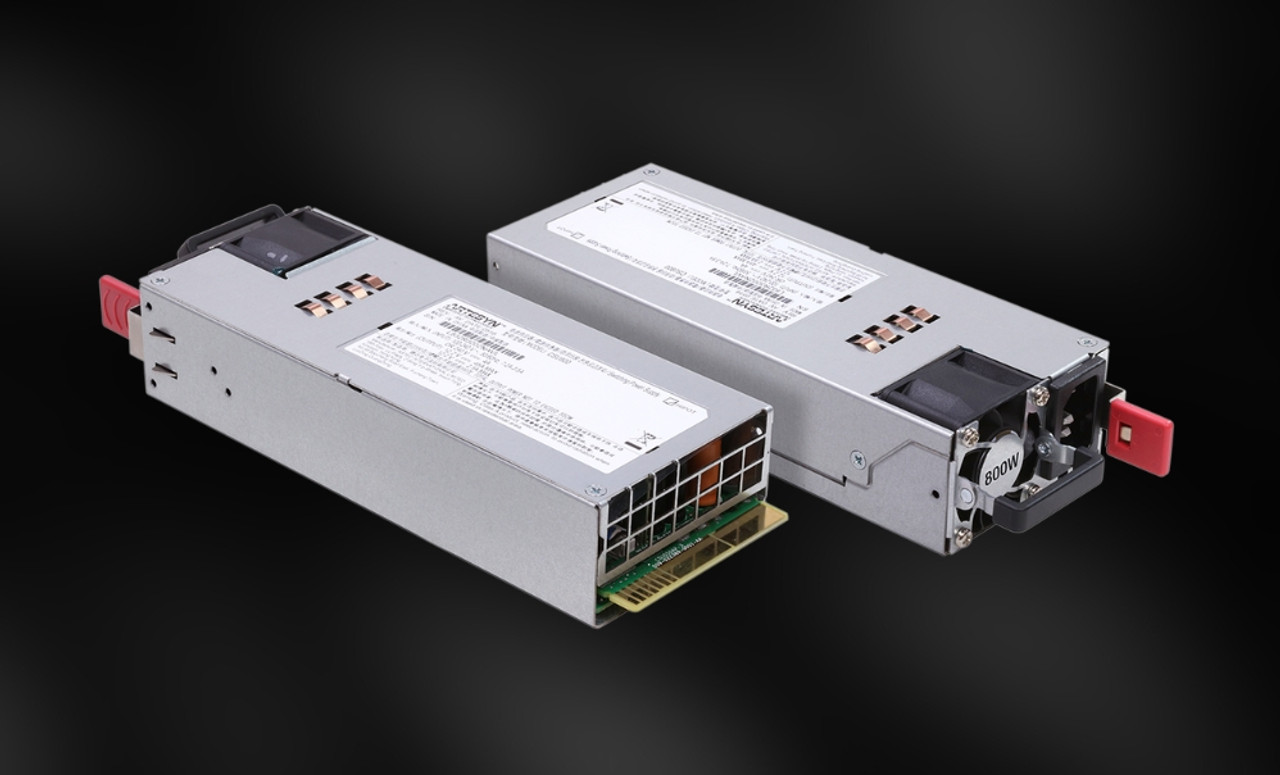
Large deployments run into hundreds of terabytes across many bays, with redundant power supplies, dual controllers, and failover so services stay up during maintenance. Enterprise NAS gear is built to keep serving files while parts get replaced.
NAS for Creative Workloads
Photographers and video teams park raw footage and libraries on shared storage and edit over the network. This is where fast ports and flash caching pay for themselves, since a 10GbE link handles multiple editors pulling large files at the same time.
How to Choose the Right NAS Storage Device
Work out capacity first: Add up what you have now, double it for the next three years, then remember RAID takes a cut. Four 8 TB drives in RAID 5 give you about 24 TB usable, not 32 TB. Plan to stay under 80% full, because a stuffed array slows down and rebuilds badly.
Pick the bay count carefully: Two bays only allow mirroring. Four bays open up RAID 5 and better use of your drives. Six or more suits growing teams. Buying a bigger chassis than you need today is cheaper than replacing the whole unit in eighteen months.
Check drive compatibility: Use NAS-rated CMR drives. Avoid SMR drives in a RAID array, since they slow to a crawl during rebuilds and turn a routine drive swap into a long, risky wait.
Match the network to the work: Office documents are fine on 1GbE. Video editing, large design files, and busy multi-user access need 2.5GbE at minimum, with 10GbE for heavy media work.
Common NAS Storage Mistakes to Avoid
Buying too little capacity is the mistake people repeat most. Storage needs grow faster than anyone predicts, and a full NAS is a slow NAS.
Skipping redundancy is the costliest one. A single-drive NAS with no backup is a bigger risk than the external drive it replaced, because now everyone's files sit on it.
Using cheap desktop drives in a multi-bay unit invites early failures. They aren't built to spin next to five other drives all day.
Underestimating the network is the quiet one. People blame the NAS for being slow when the 1GbE port is the real limit. Check the ceiling before blaming the box.
Leaving default logins and open ports in place is the security version of the same carelessness. Change the admin account, turn on two-factor, and keep the firmware current.
Where Is NAS Storage Heading?
Flash is moving in. All-flash and NVMe-based units are dropping in price, and hybrid setups pairing hard drives with SSD caching have become the middle ground for most buyers.
Ports keep getting faster. 2.5GbE is standard, 10GbE is common on mid-range models, and USB4 networking is starting to appear on newer creator-focused units.
Cloud tie-ins are now built in, so a NAS can sync a copy of critical folders offsite on a schedule without extra software.
On-device AI is the newest shift: NPUs inside the box sort photos by face and place, tag media, and index files locally, so nothing has to be uploaded to a third party for the search to work.
Conclusion
Network Attached Storage takes files scattered across laptops, drives, and inboxes and puts them in one place your whole team or household can reach. Pick capacity and drive bays based on where you'll be in three years, not where you are today.
Match the drives and the network port to the actual work. And treat RAID and backups as two separate jobs, because they are.
Get those four things right, and a NAS server tends to sit quietly in a corner doing its job for the better part of a decade.
Frequently Asked Questions
A: Add up your current data, double it, then add the RAID overhead. For a home, 8 TB to 16 TB of usable space covers photos, media, and backups comfortably. Small businesses commonly land between 16 TB and 48 TB of usable. Keep usage below 80% of total capacity for healthy performance.
A: To store files in one shared location that multiple users and devices can reach over the network, with built-in backup, permissions, and drive redundancy.
A: For shared or multi-device use, yes. An external drive serves one computer at a time and has no redundancy. A NAS serves your whole network, survives a drive failure with RAID, runs scheduled backups, and works remotely. An external drive is still cheaper and simpler for one person moving files around.
A: Very much so. A four-bay unit handles team file sharing, workstation backups, and document storage for well under the cost of a server. NAS storage for small business file management is one of the most common reasons these devices get bought.
A: Yes. NAS software backs up computers and phones to the NAS on a schedule, and copies the NAS itself to a second unit or cloud account. Snapshots let you restore a folder to an earlier point after accidental deletion or a ransomware hit.
A: It can be, with the right setup. Use strong, unique passwords, turn on two-factor authentication, encrypt sensitive folders, restrict permissions per user, keep firmware updated, and reach it remotely through a VPN rather than exposing it directly to the internet.
A: Consumer and business units with an NPU or capable integrated graphics handle on-device AI tasks such as photo recognition, tagging, and media conversion. Serious model training needs GPU servers, though a NAS is well suited to storing and serving the datasets those servers read from.