A desktop computer is a machine built to stay in one place and run on wall power, and that single design choice is why it still outworks most portable machines.
Nothing has to shrink to fit a bag. Parts can be bigger, fans can be larger, and old parts come out while new ones go in.
Desktops have been sold since the late 1970s, and they never went away. What changed is the shape. A computer desktop can now be the size of a paperback or fill half your desk.
Most buyers pick from four builds:
the desktop tower PC
the mini desktop PC
the all-in-one PC desktop
the gaming desktop computer.
Here's what each one does, how the parts work together, and how to match one to your workload.
What Is a Desktop Computer?
A desktop computer is a non-portable personal computer that runs on mains power and keeps its processing parts in a case separate from the screen, keyboard, and mouse.
All-in-ones hide those parts behind the display, but the machine still lives on a desk and doesn't move.
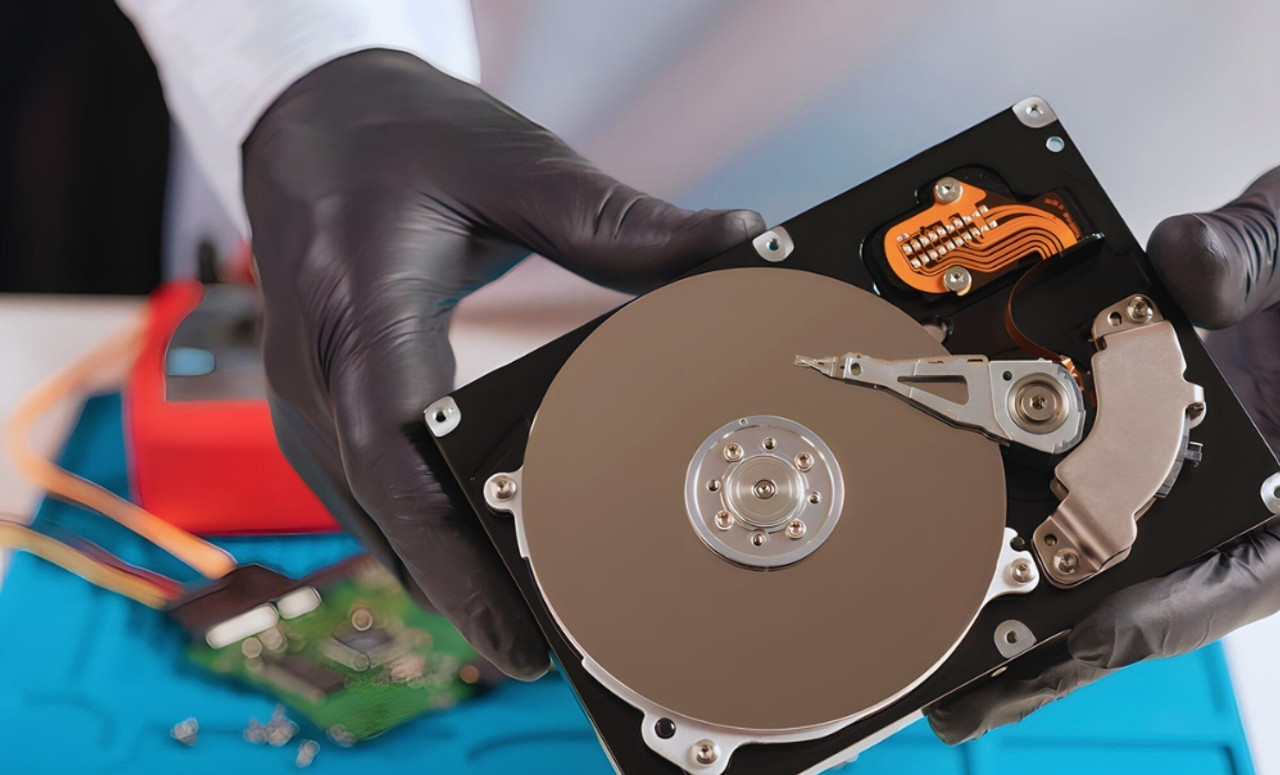
Every desktop uses the same parts. The motherboard is the base everything plugs into. The processor calculates, RAM holds what the CPU is working with right now, and an SSD or hard drive keeps your files once the power goes off.
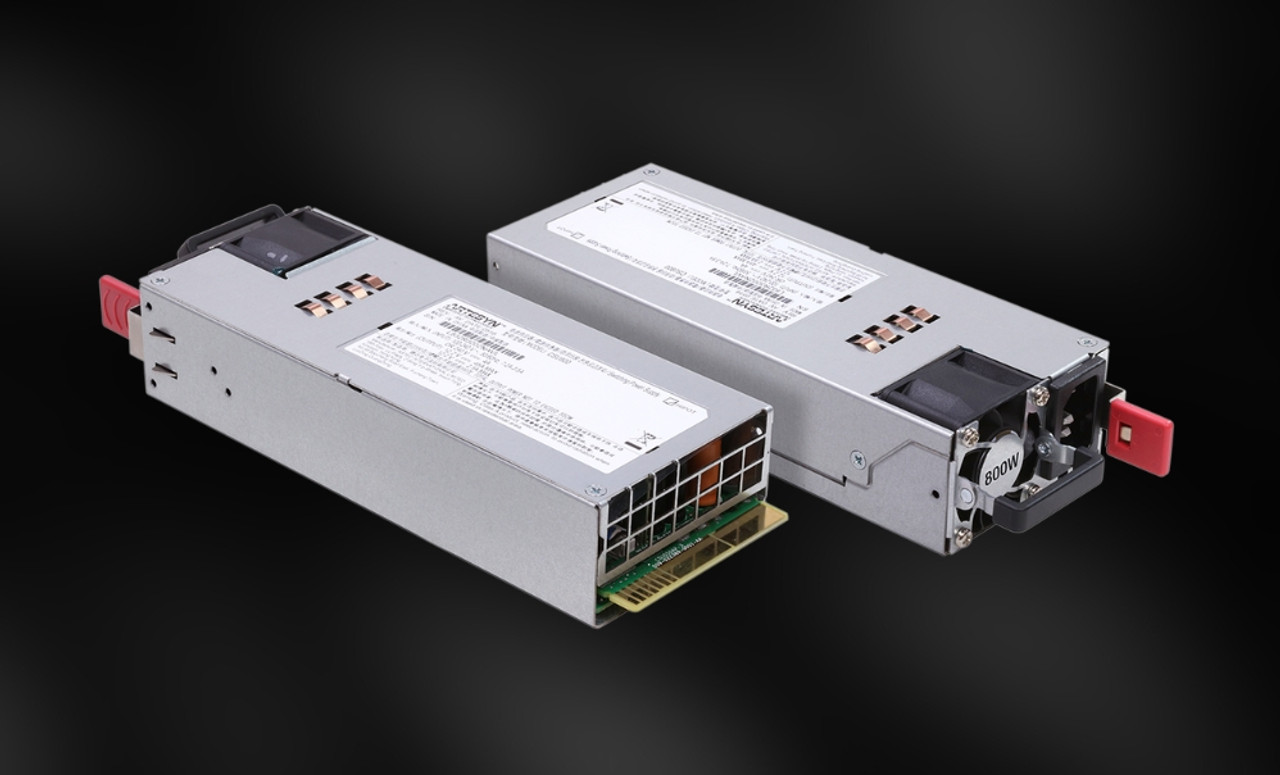
A graphics card draws what you see, a power supply feeds it all, and a cooler plus case fans carry heat out.
Board sizes follow set standards. A full ATX motherboard measures 305 x 244 mm, microATX is 244 x 244 mm, and mini-ITX is just 170 x 170 mm.
A desktop processor has no battery or thin lid to work around. It commonly carries a 65W rating, with higher-end chips rated at 125W and pulling past 200W under load, while a thin laptop chip runs closer to 15W to 28W.
That gap, plus room for a real cooler, is the whole story behind the performance difference.
Types of Desktop Computers
Four builds cover almost everything on sale. They differ in internal volume, cooling room, and how much you can change later.
Desktop Tower PC
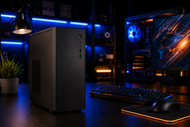
The desktop tower PC is the upright box most people picture. A mid-tower case takes an ATX or microATX board, a full-length graphics card, several drives, and up to six fans without a squeeze.
Towers win on air. More volume keeps parts cooler, and cooler parts hold their top speed through a long render instead of slowing halfway. Repair is easy too, since every part sits in a socket you can reach with one screwdriver. The trade-off is space and weight, because a loaded tower can pass 10 kg.
Mini Desktop PC
A mini desktop PC packs a full computer into roughly 0.5 to 2 litres, small enough to bolt behind a monitor using standard VESA holes. Most run laptop-class chips, SO-DIMM memory, and a single M.2 SSD, fed by an external power brick rated around 65W to 120W.
You give up the graphics card. Integrated graphics still handle office work, video calls, and 4K playback, which makes these the standard pick for reception desks, classrooms, and digital signage.
All-in-One PC Desktop
An all-in-one PC desktop puts the whole computer behind the screen: one power cable, one clean shape, and a 24-inch to 27-inch display already matched to it.
Inside, most use mobile processors, SO-DIMM memory, and one or two M.2 slots, because space behind a panel runs thin and heat has fewer ways out. Some give hatch access to RAM and storage. Plenty seal everything in. The catch shows on repair day, since the display and the computer share one chassis, so a failed board can strand a good screen.
Gaming Desktop Computer
A gaming desktop computer is a tower built around graphics first. The discrete GPU is the priciest and thirstiest part, drawing 200W to 450W on its own, which is why these machines ship with 750W to 1000W power supplies carrying 80 Plus Gold or better ratings.
A high clock-speed processor stops frame rates stalling, 16GB to 32GB of DDR5 covers modern titles, and an NVMe SSD cuts loading to seconds. The same build suits video editing, 3D rendering, and running AI models locally.
How Desktop Computers Work
Press the power button and the power supply converts mains AC into the 12V, 5V, and 3.3V rails the parts need. The motherboard firmware, called UEFI, checks memory, storage, and graphics before handing over control. That check is the POST, and a beep or diagnostic light here points straight at the faulty part.
Once it clears, the firmware pulls the operating system off the SSD into RAM. From there the CPU repeats one loop millions of times a second: fetch an instruction, decode it, run it, store the result.
Speed comes from keeping data close to the processor. L1 cache answers in about a nanosecond, L3 cache in roughly 10 to 20, and DDR5 system memory in the region of 60 to 80 nanoseconds. An NVMe SSD replies in tens of microseconds, while a spinning hard drive takes 5 to 10 milliseconds. Every design choice in a desktop fights that slow end.
The graphics card sits in a PCIe x16 slot with its own express lane. A PCIe 5.0 x16 link moves close to 63 GB/s in one direction, fast enough for the GPU to draw frames without a queue forming. The chipset runs the rest: USB, network, audio, and SATA drives.
The cooler pulls heat off the processor, and case fans push it out the back. Block those fans and the chip slows itself down to survive, which is why dust shows up as a slow computer before it shows up as a broken one.
Advantages of Desktop Computers
Sustained speed comes first. A laptop hits its peak for a minute, then heat forces it down. A desktop with a proper cooler holds that speed through a two-hour export.
Repair comes next. Sockets, slots, and standard sizes let you add memory, fit a bigger SSD, drop in a stronger graphics card, or replace a dead power supply without touching anything else.
AMD's AM5 socket and Intel's LGA 1851 socket both support several processor generations, so a board bought today can take a faster chip in two years.
You also get more machine for the money. Without paying for a battery, a screen, a trackpad, and miniature engineering, the same budget buys more cores, more memory, and more storage. Pick your own monitor and keyboard while you're at it, rather than accepting whatever a laptop lid gives you.
Life span ties it together. A desktop that gets a memory bump at year three and an SSD swap at year five stays useful for close to a decade.
Future Trends in Desktop Computers
On-device AI is reshaping what a desktop PC ships with. New processors carry a neural processing unit, and Microsoft set the bar for its Copilot+ features at 40 TOPS of NPU performance.
That moves live translation, background removal, and image work onto your own machine, which keeps your data at home and cuts the wait.
Memory and storage climb to match. DDR5 is the default on current sockets, with speeds past 6000 MT/s, and PCIe 5.0 SSDs read faster than older drives could manage.
People running AI models locally now buy graphics cards for video memory as much as frame rates, since a model has to fit in VRAM to run well.
Power delivery got a rewrite too. The ATX 3.x standard and the 12V-2x6 connector let one cable feed up to 600W to a graphics card and absorb the sharp spikes modern GPUs create.
Cases are shifting too, with back-connect motherboards hiding cables behind the tray.
Choosing the Right Desktop PC
Start with the work, not the price. Write down the three things you'll do most, then buy the parts those three jobs lean on.
For office work, browsing, and video calls, a 6 to 8-core processor, 16GB of RAM, and a 512GB NVMe SSD with integrated graphics runs beautifully. A mini desktop PC or an all-in-one PC fits this well.
For photo and video editing, 3D, or CAD, aim for 12 or more cores, 32GB to 64GB of memory, a graphics card with at least 12GB of video memory, and two drives.
For gaming, put the money in the GPU and match it to your monitor, since a 1080p 144Hz screen needs far less card than a 1440p or 4K panel. For programming and data work, core count and memory beat raw clock speed, and 32GB is a comfortable floor.
Check the upgrade path before you pay. How many memory slots are free? Does the power supply have 150W of headroom? Will the case take a longer graphics card? Room to grow saves a full replacement later.
A desktop computer earns its place by staying still. That fixed position buys room for bigger coolers, standard-size parts, and open slots, so you get speed that holds under pressure and a machine you can repair instead of replace.
Towers give you the most room and the longest life. Mini PCs give you quiet, low-cost computing. All-in-ones give you the tidiest desk. Gaming desktops give you graphics power that spills into creative and AI work.
Match the specs to the three jobs you do most, leave a free memory slot and some power supply headroom, and the desktop PC you buy this year will still pull its weight years from now.
Frequently Asked Questions
A: Check five things: processor core count and clock speed, amount of RAM, storage type and size, graphics capability, and the upgrade path. That last one is what buyers skip. Look for free memory slots, a spare M.2 slot, a power supply with wattage to spare, and a socket that supports newer processors.
A: RAM is short-term working memory. It holds the operating system, your open apps, and the files you're editing so the processor can reach them in about 60 to 80 nanoseconds instead of waiting milliseconds on a drive. When RAM fills, the system pushes data onto the SSD and everything slows. 16GB suits office use, 32GB suits gaming and editing, and 64GB or more suits heavy 3D work.
A: Yes. An all-in-one PC desktop houses the processor, memory, storage, and cooling inside the same shell as the monitor. Screens are commonly 24 to 27 inches. Most use mobile processors and SO-DIMM memory to fit the slim body, so upgrades stop at RAM and storage, and sealed models rule out even those.
A: Desktops hold their top speed under long workloads, cost less for the same performance, and can be repaired part by part. Cooling is the core reason: a full-size cooler and case fans let a 65W or 125W processor run flat out for hours, while a thin laptop chip throttles back within minutes.
A: Yes, and it's one of the best reasons to buy one. Memory, storage, graphics cards, coolers, power supplies, and fans all use standard sizes and connectors, so each can be replaced on its own. Processors can be upgraded as long as the new chip fits the same socket and the board firmware supports it.
A: Multitasking runs on three things: processor cores, memory capacity, and storage speed. Extra cores let the processor work on several tasks at once rather than switching between them. Plenty of RAM keeps every open app loaded instead of swapping to disk. A fast NVMe SSD answers in microseconds, so backups running in the background don't stall your work.